For effective management and searching of your contacts. Cheerio has introduced filters and here is how you can use them.
Step 1: Log in to your Cheerio Dashboard and head to the contacts section. Here you will find filters next to the search.

Step 2: Click the filter button, You will be asked to select the attribute based on which you want to filter your contact. Let's take an example I want to filter phone no. with the country code +91. so, in that case, I will select phone no. as an attribute to filter.
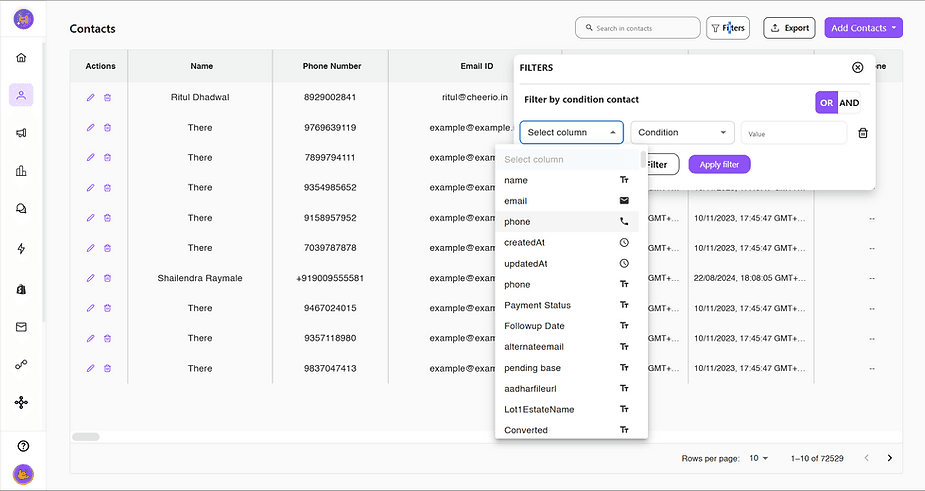
Step 3: Select among different types of conditions like is equals to, is not equals to, contains, does not contain, is empty, or is not empty. following our example: we will select "contains"
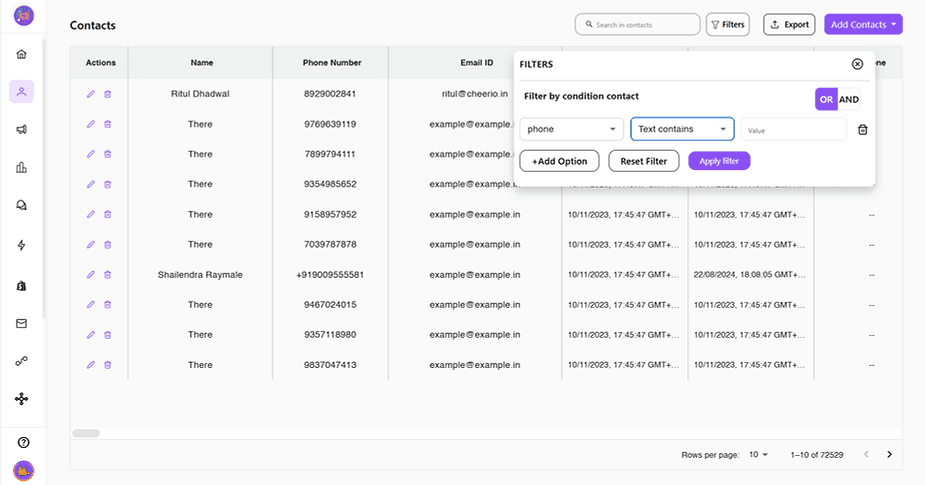
Step 4: Enter the matching value which you want to filter out. following our previous example we will add +91.
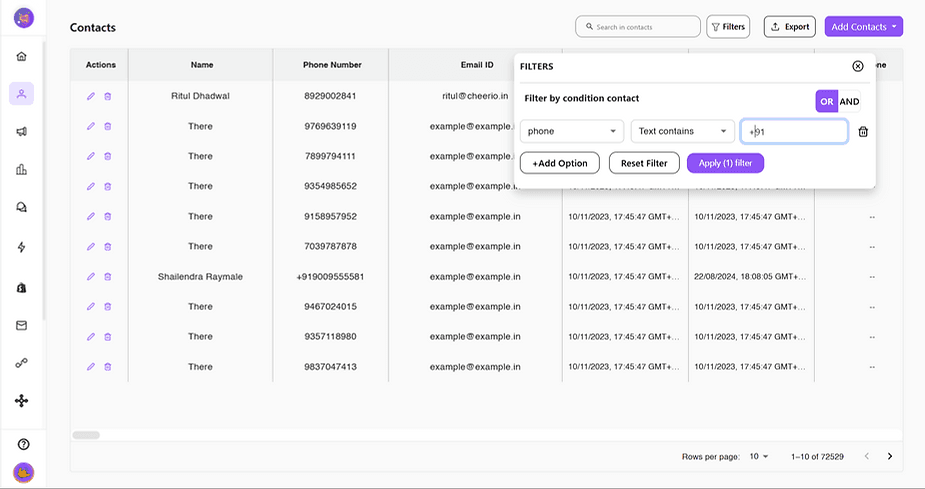
Step 5: Click "Apply Filter" and it's done. All your filtered contacts will be shown in the table.
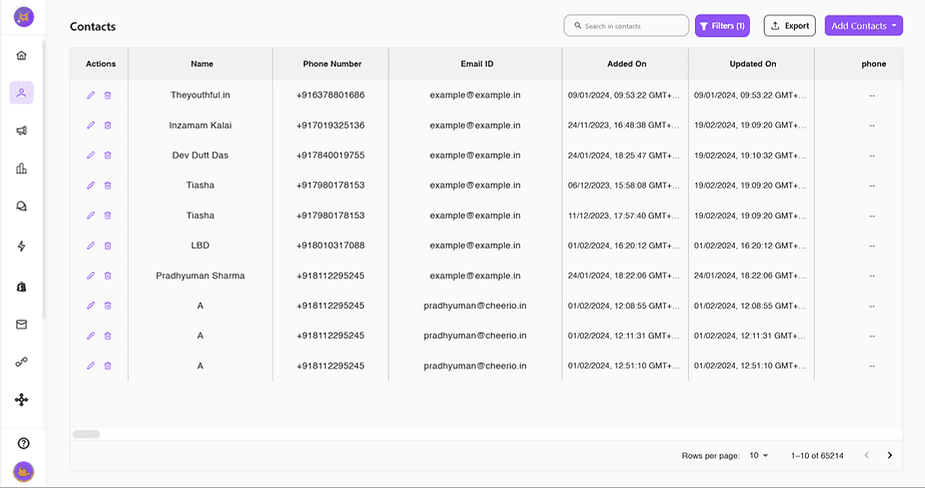
For advanced filtering, You can filter up to 5 different attributes at the same time using AND/OR Conditions.
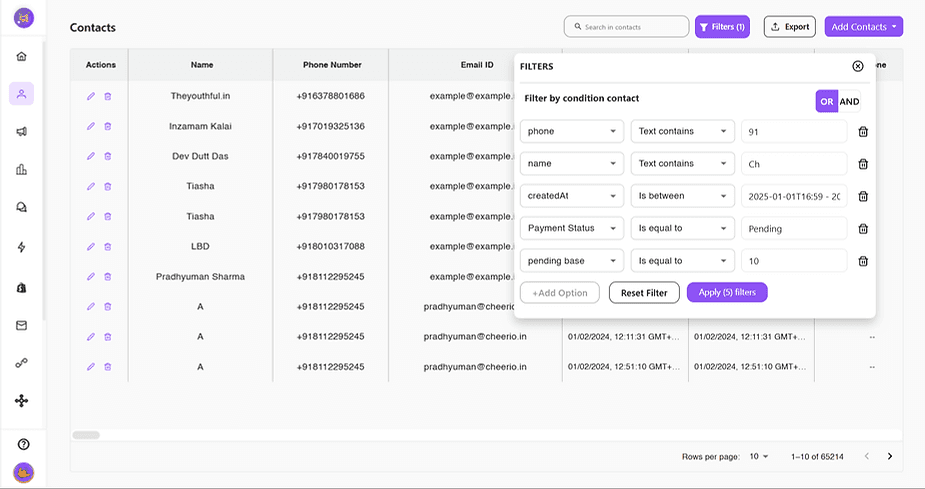
What are AND/OR Conditions?
Let's take an example I want to filter the data out of 100 contacts who are in the e-commerce business, have their website, and are living in Delhi.
Now because I want all the 3 conditions to be satisfied I will use "AND" here but just in case I only wanted any of these conditions to be satisfied I will use "OR"
In case you've doubts or queries. Feel free to reach out us at support@cheerio.in