1. Understanding Keywords
Keywords trigger specific actions when they match a customer's reply on WhatsApp.
A keyword can be a single letter, word, or even a sentence with special characters.
2. Available Actions
Actions triggered by keywords include sending messages, documents, media, messages with quick replies, assigning the chat to an agent, sending a template message, or triggering a workflow.
3. Using Keywords for Your WABA
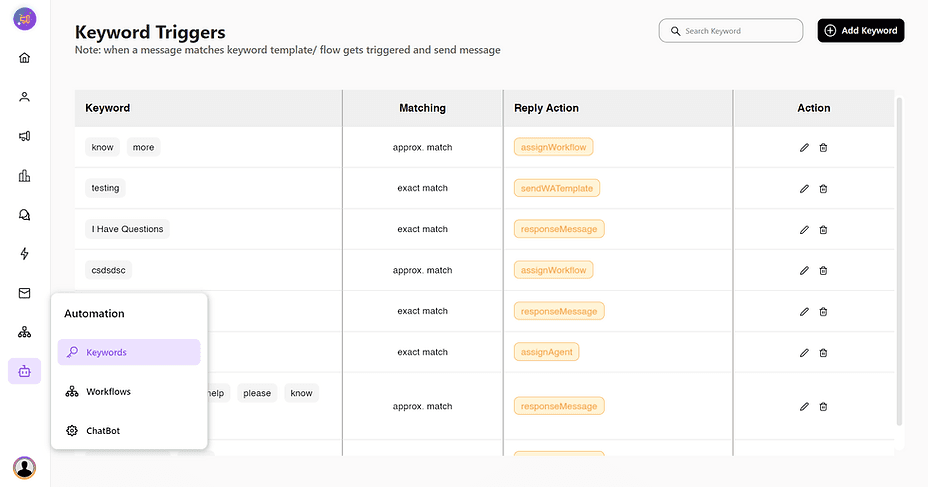
Navigate to the "Automation" section in the side navigation bar and open the "Keywords" tab.
4. Managing Keywords
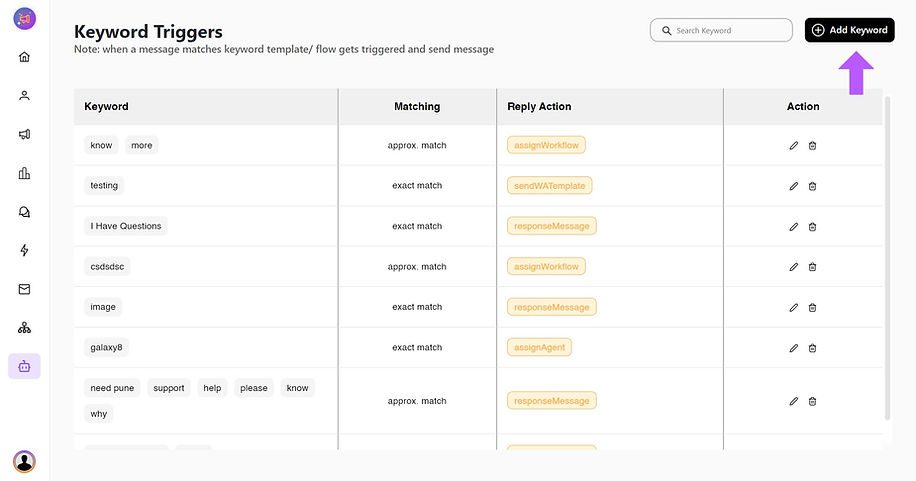
Here, you'll find all your created keywords and their assigned actions.
Click the "Add new keyword" button to create a new keyword.
5. Creating a Keyword
Choose a matching criteria:
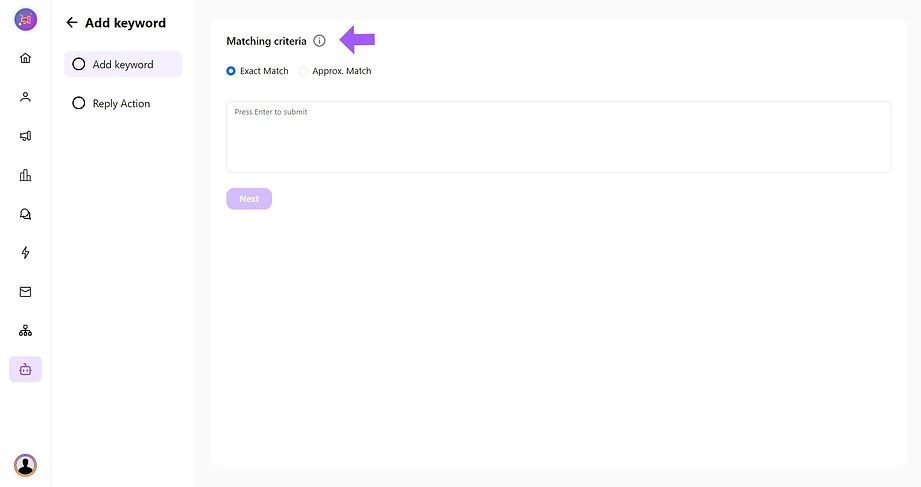
Exact Match: Triggers only when the exact message is typed by the user (case-sensitive).
Approximate Match: Triggers even if a character or word is matched. For example, if the keyword is "I want to talk to support" and the customer replies with "support," the action will trigger.
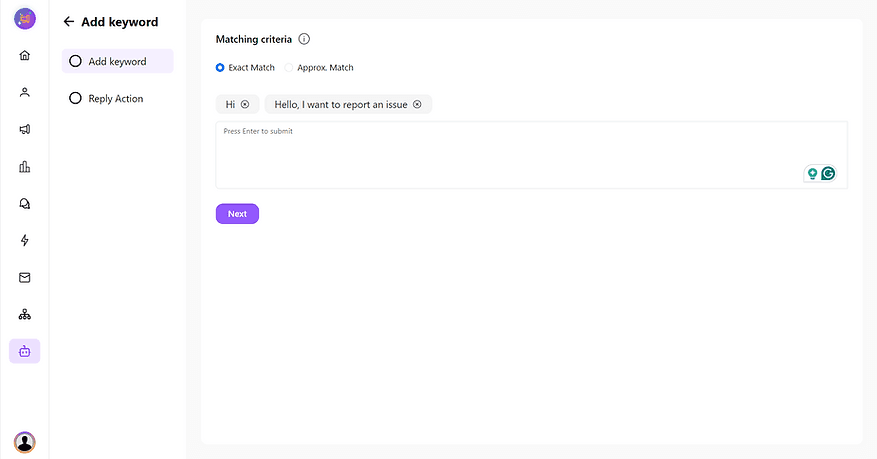
Type the word or sentence and press ENTER to convert it into a keyword. You can add multiple keywords or create a set of keywords.
6. Assigning an Action
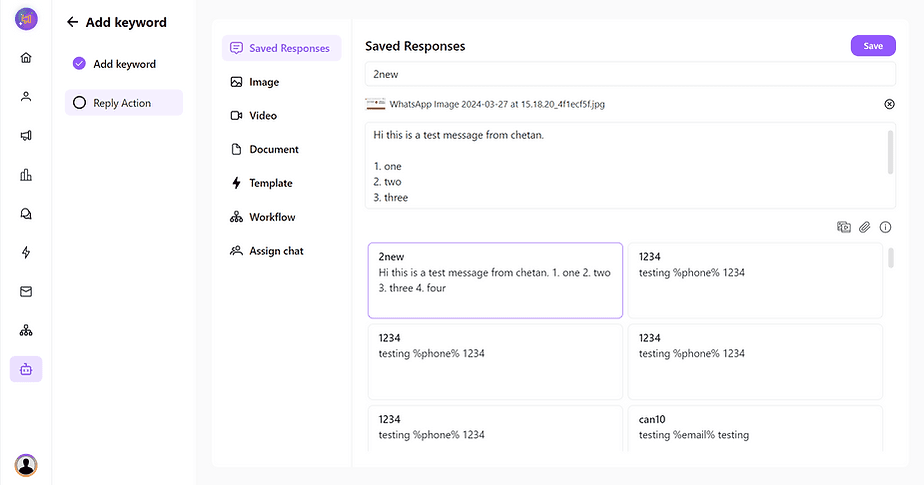
Select a desired action from the list provided.
Save your keyword trigger.
Congratulations! Your keyword trigger is now created and assigned with an action. you can test it by sending a message to your WABA number.