WhatsApp is one of the most profound channels used by businesses across the world. to setup WhatsApp Channel on Cheerio AI. Below is the list of prerequisites
Prerequisites
A new phone number without an active WhatsApp Account
A Verified Facebook Business page
Admin Access to Facebook Business Page
Phone Number connected to Facebook Business Page for OTP Verification
A Live business website with a privacy policy
If you've all the above listed items you may proceed with onboarding steps. In case of any queries: Schedule Onboarding Call
Here are the steps to follow:
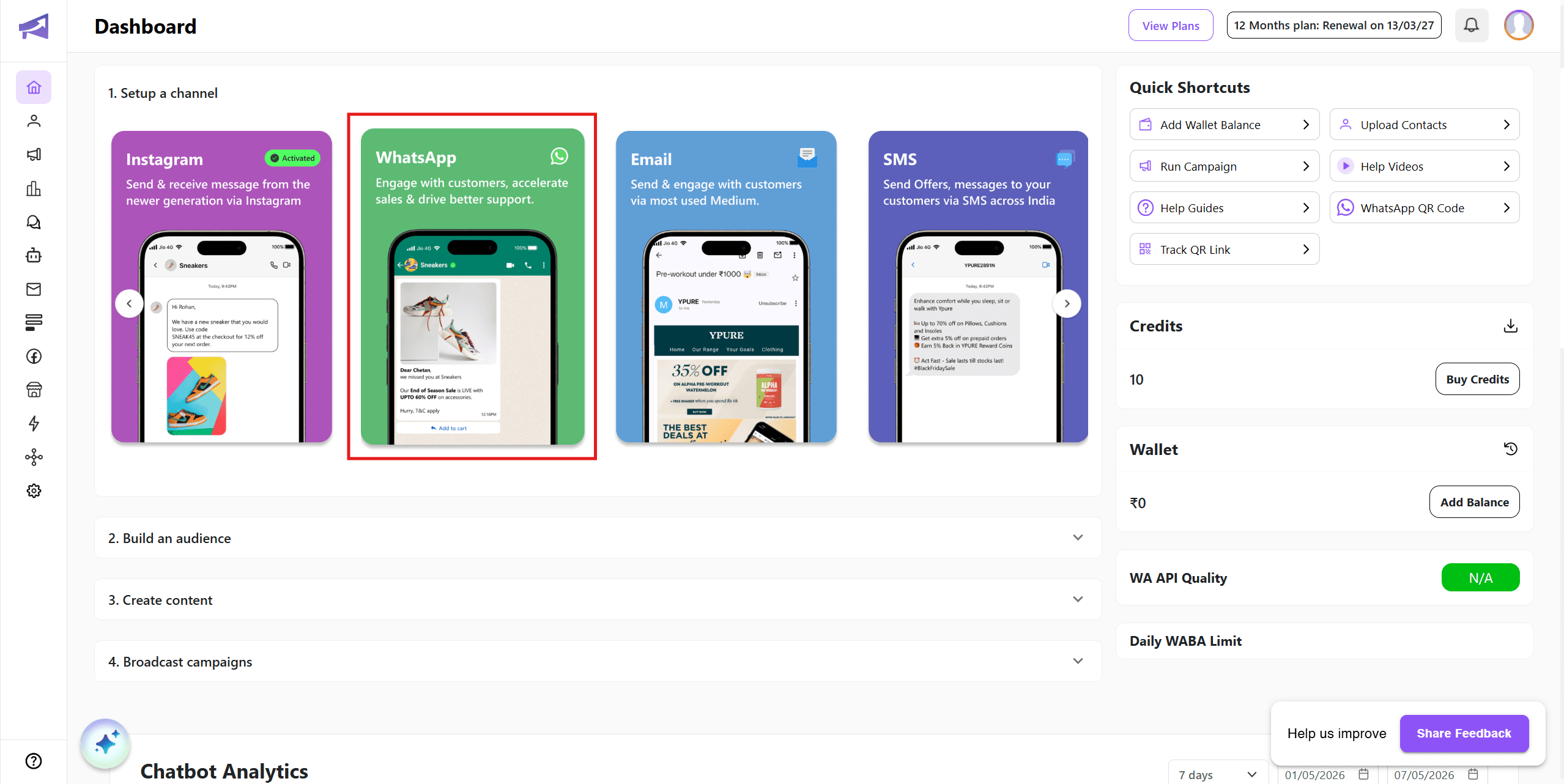
Login to your Cheerio Dashboard and click on WhatsApp Channel card to initiate setup or visit https://app.cheerio.in/whatsapp-onboarding
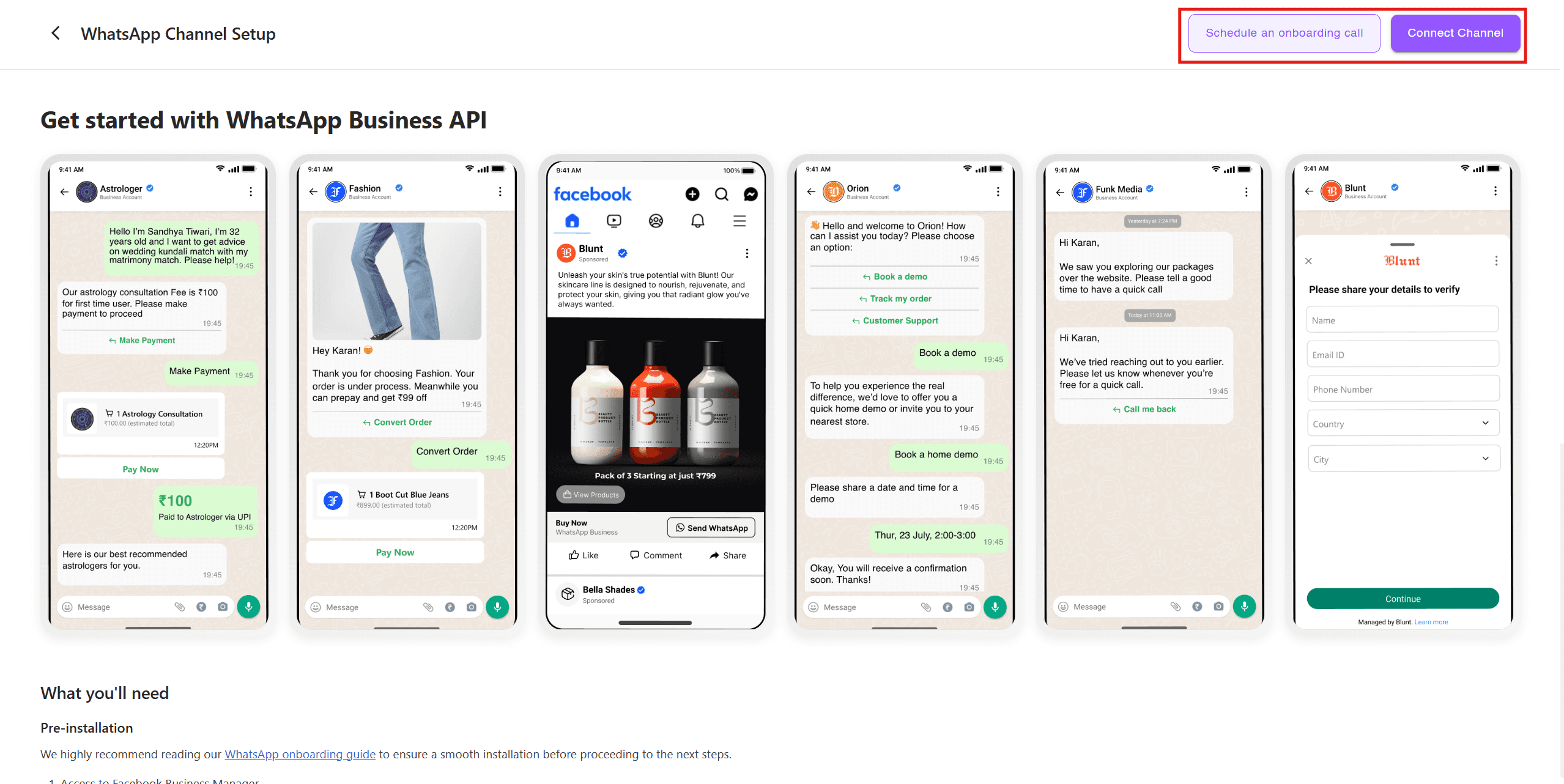
Click on "CONNECT CHANNEL" button on top right corner or you can directly schedule onboarding call for expert assistance
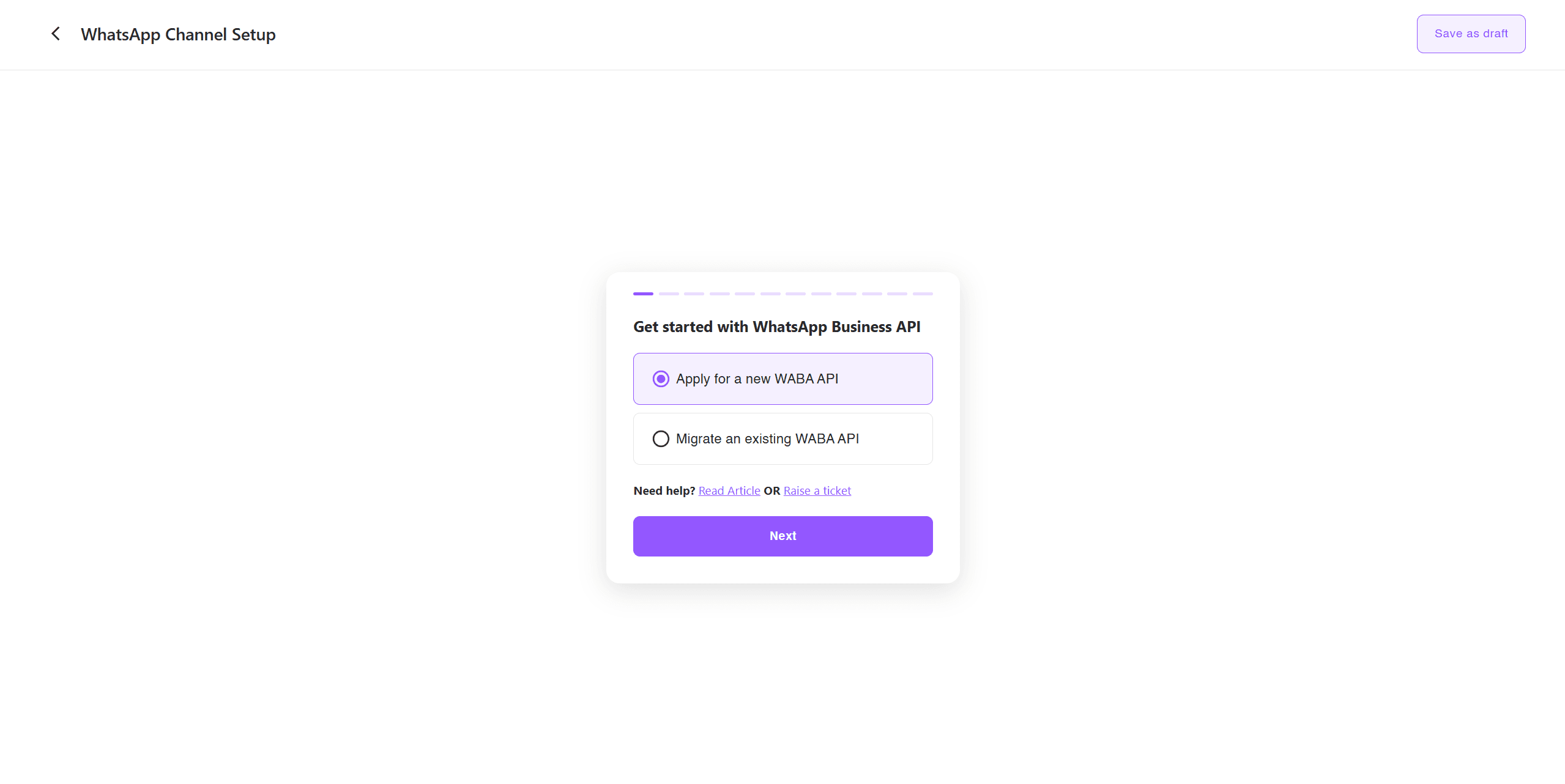
Select on "Apply for a new WABA API" to continue. Incase you're migrating from another platform select "Migrate an existing WABA API"
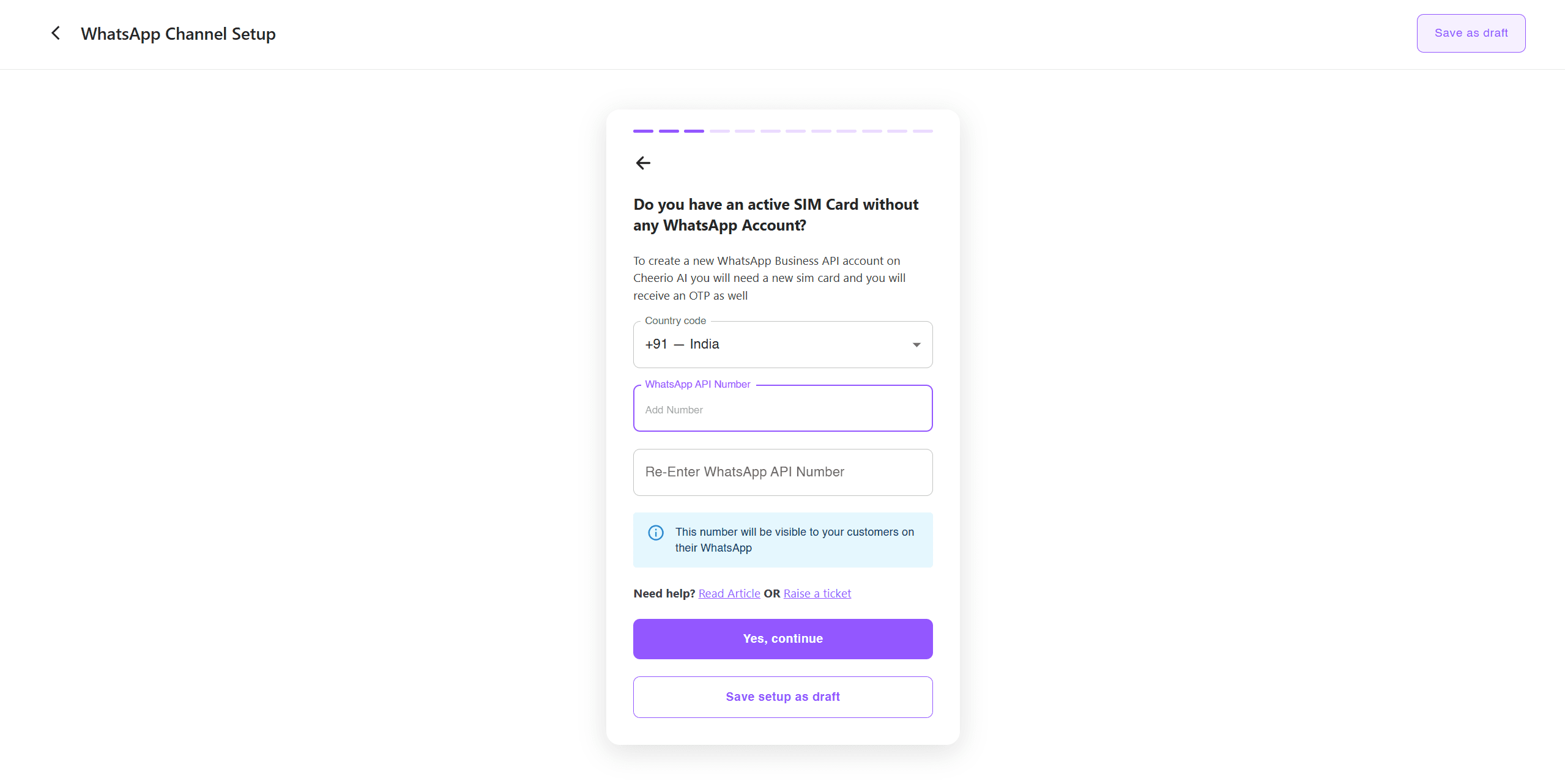
Choose a country code for your WhatsApp Business API Number, Add a new phone number (Without any active WhatsApp Account)
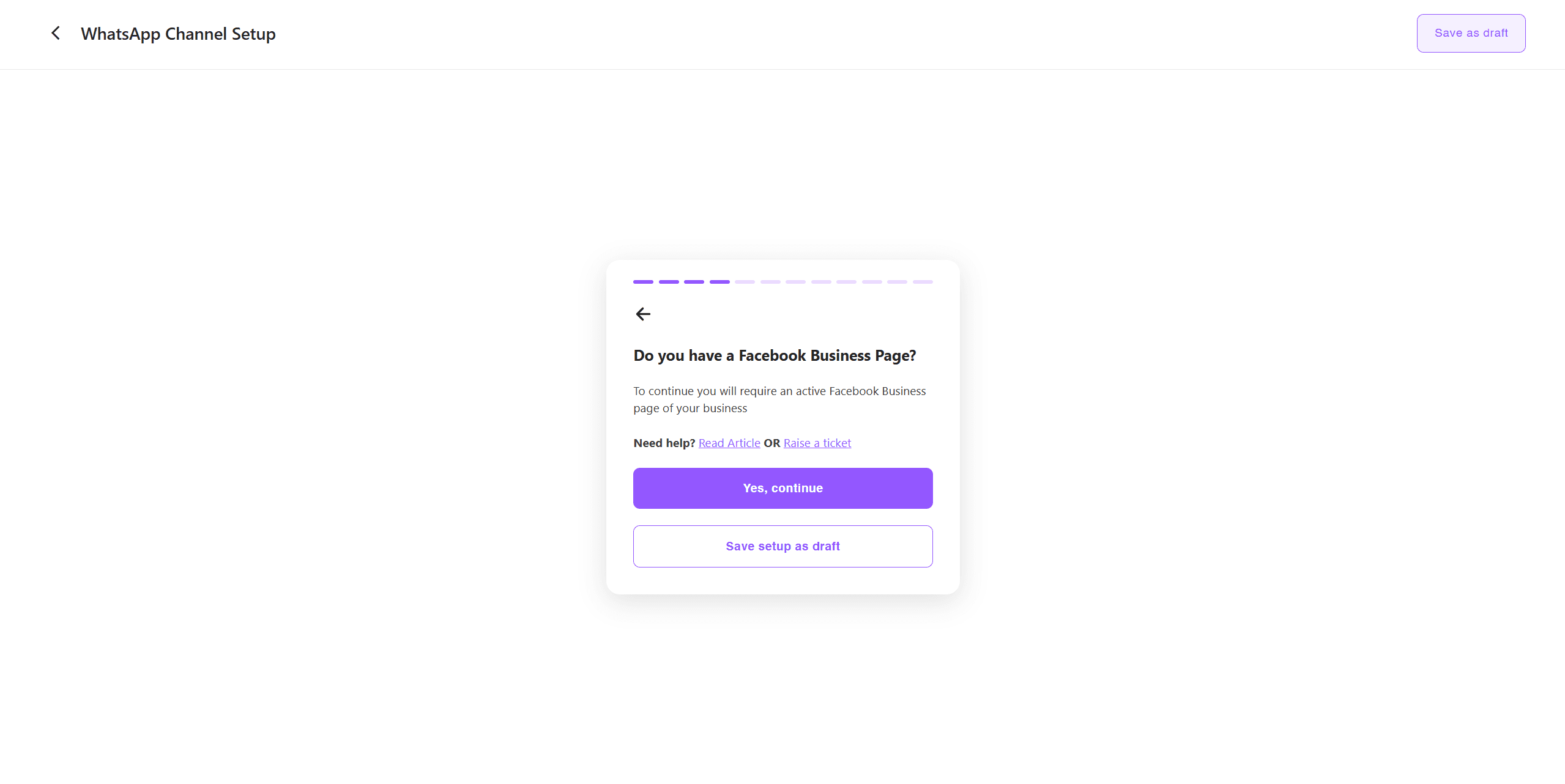
Click on "Yes, continue", If you have Facebook Business Page
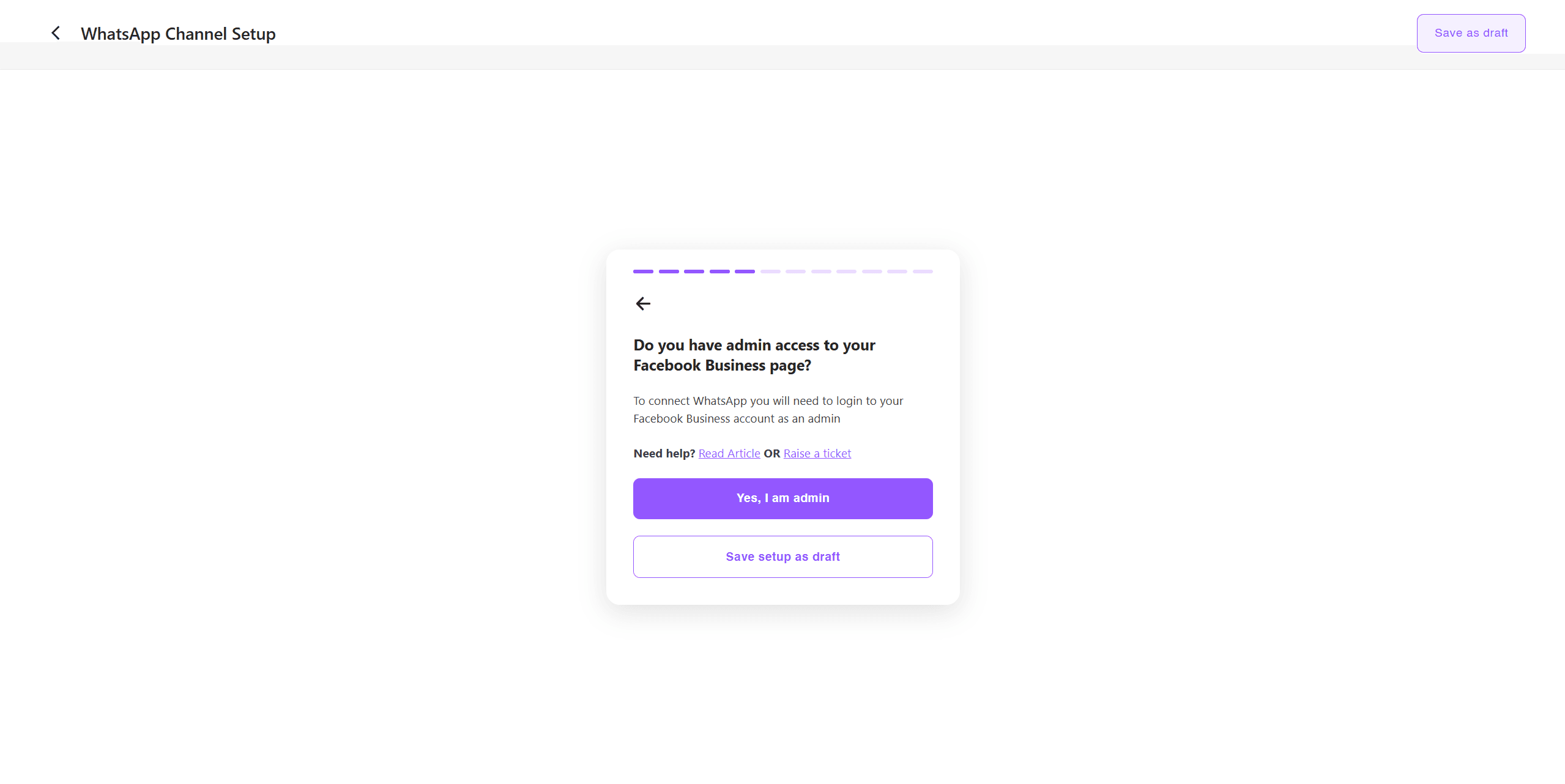
Click on "Yes, I am admin" if you have admin access for the Facebook Business Page and account you want to use for your WhatsApp.
Admin access is required to initiate WhatsApp Onboarding Process on Facebook Business Manager
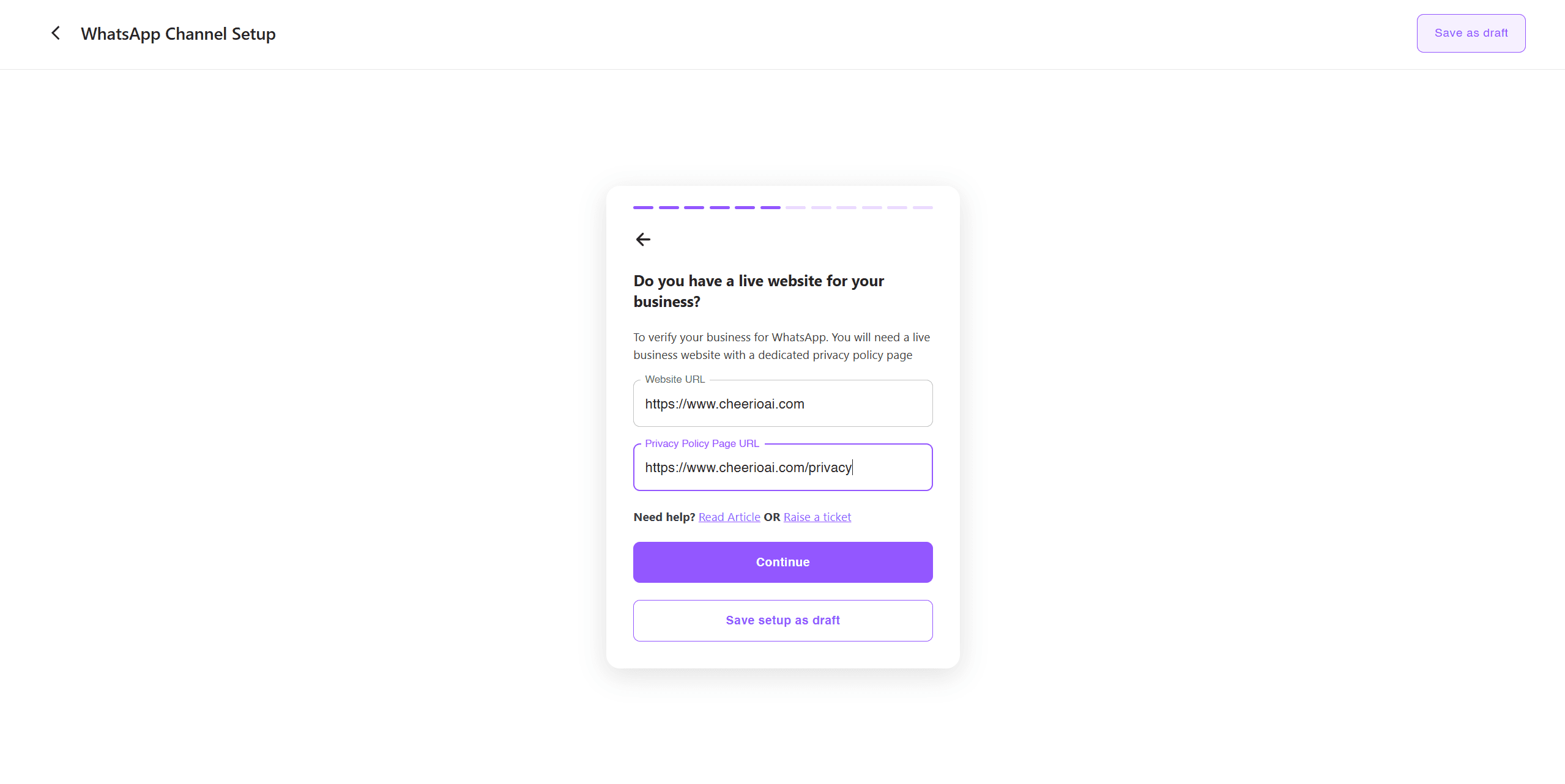
Enter URL for your Live Business Website and Privacy Policy. (Facebook does background checks to the authenticity of your Business). Add false links may lead to account blockage
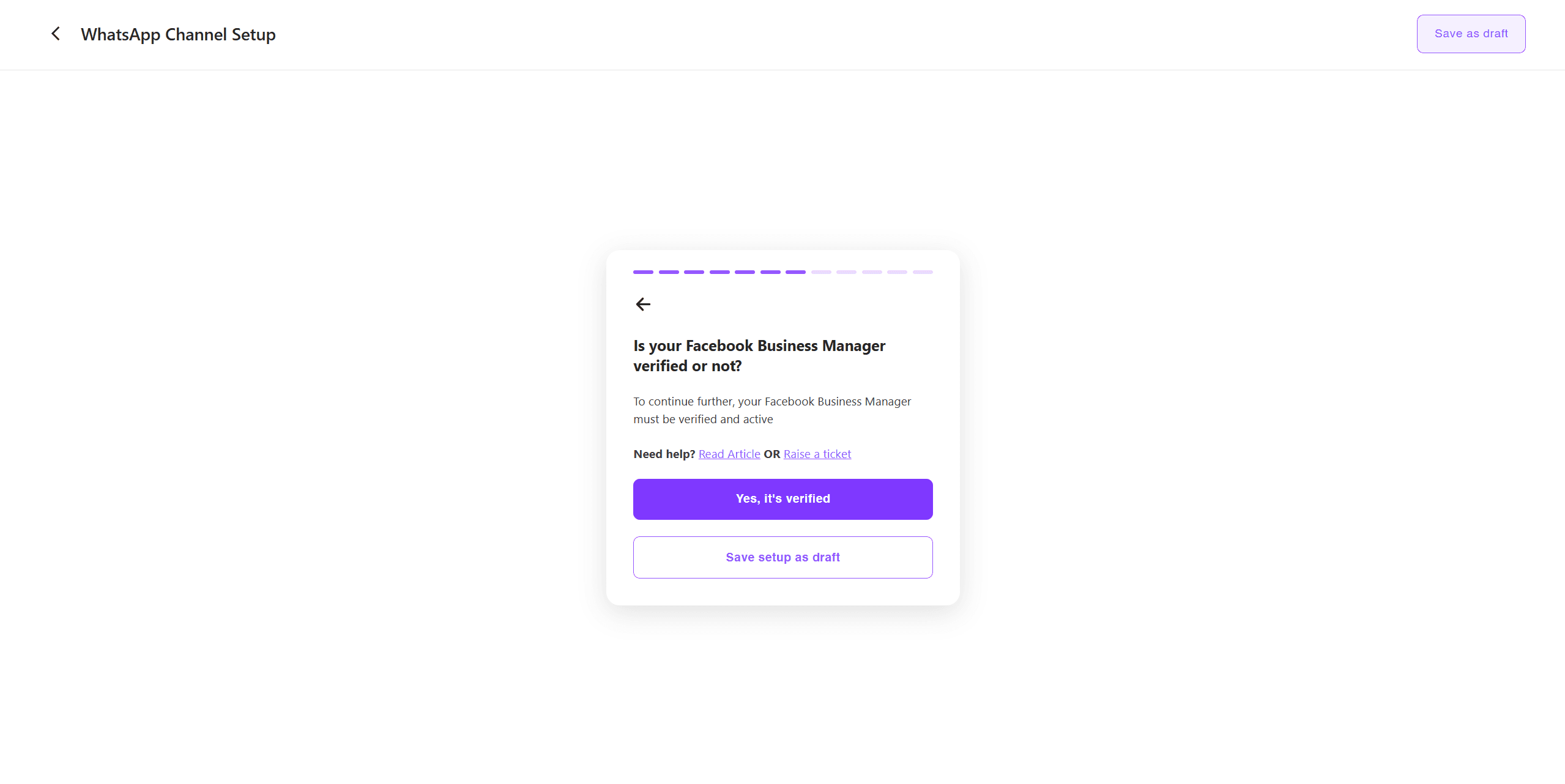
Click on "Yes, it's verified" if you have verified Facebook Business Manager. For unverified BMs you account status will be marked as inactive after successful onboarding
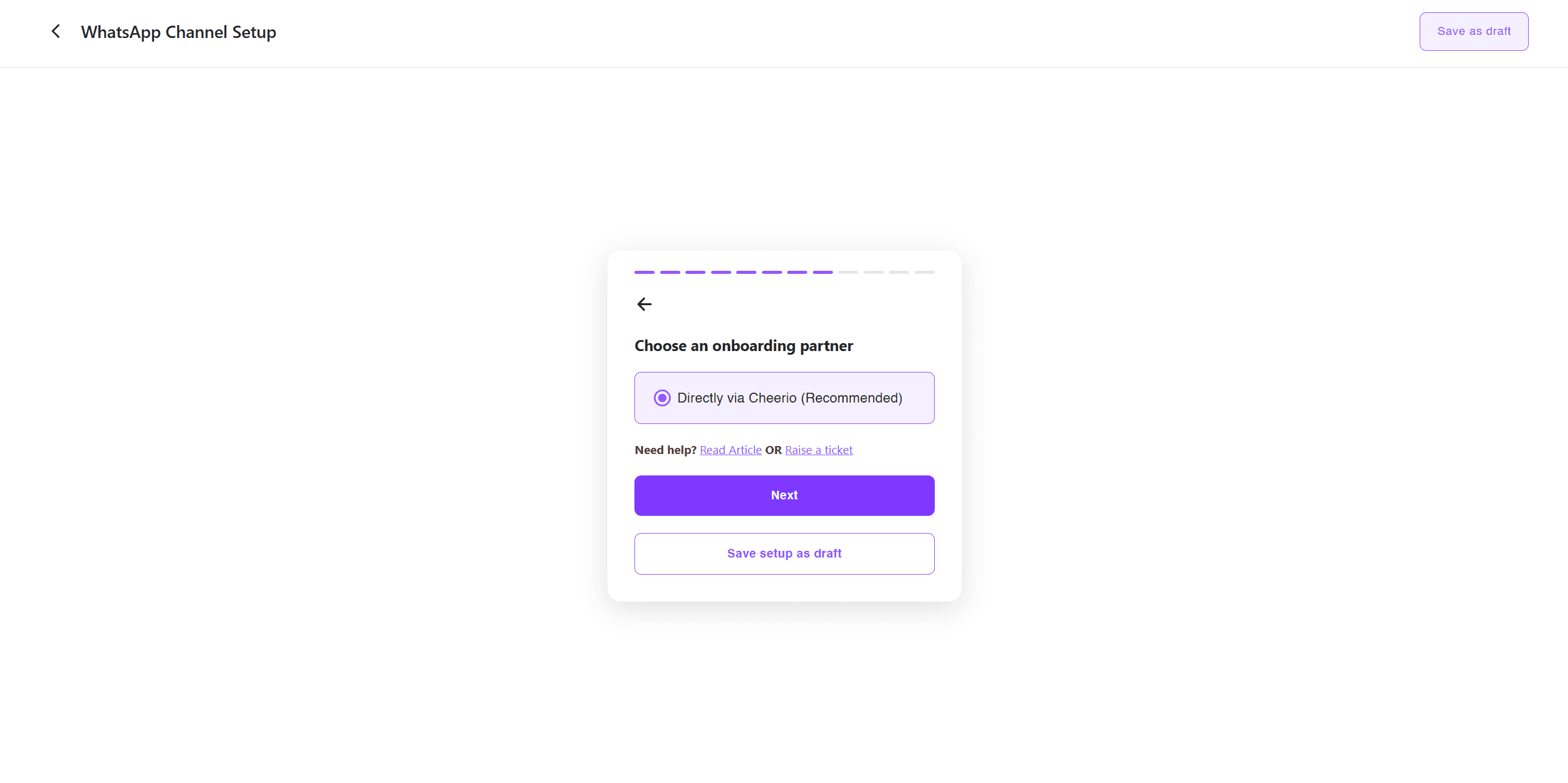
Click on "Next" to continue
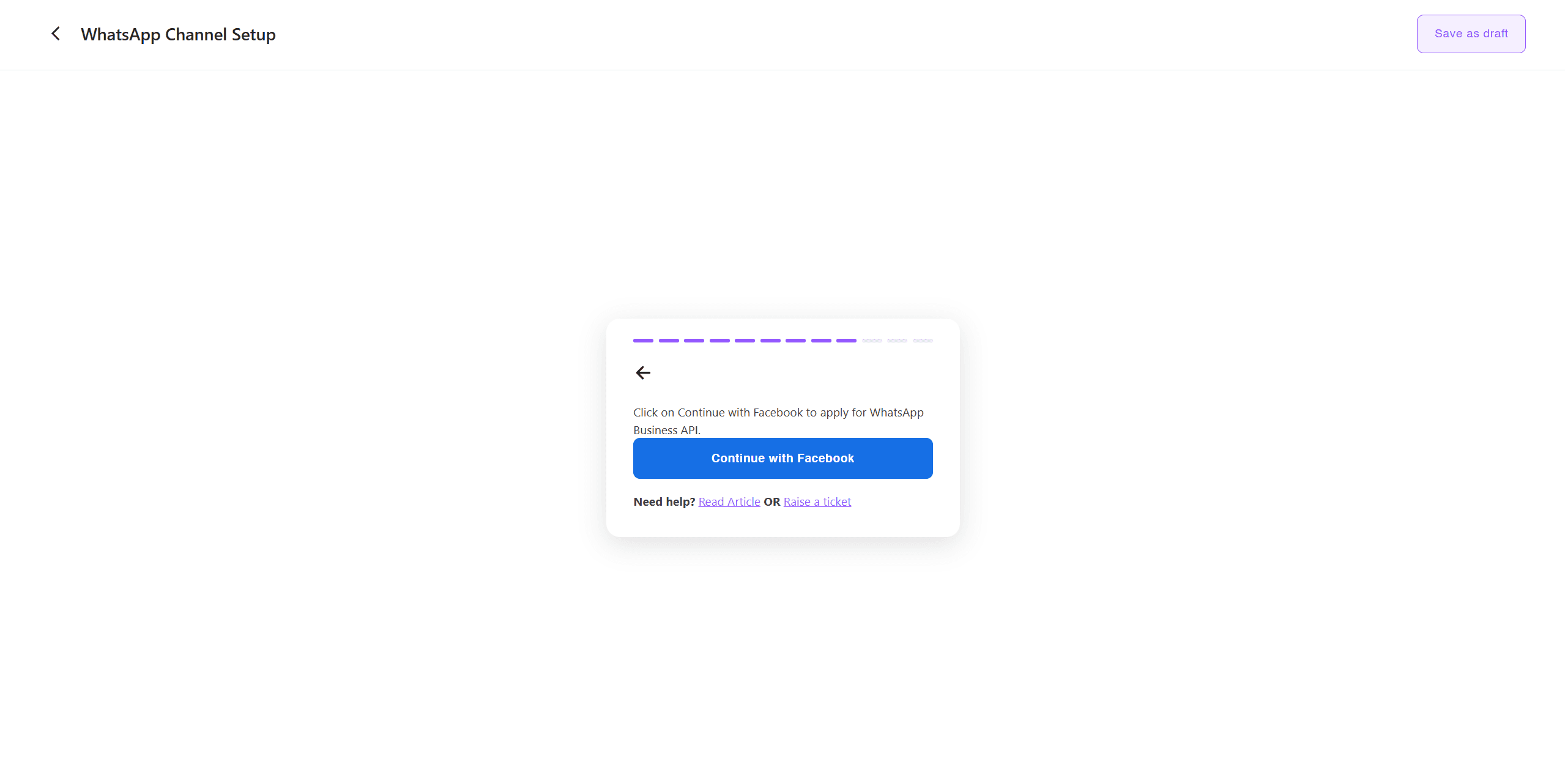
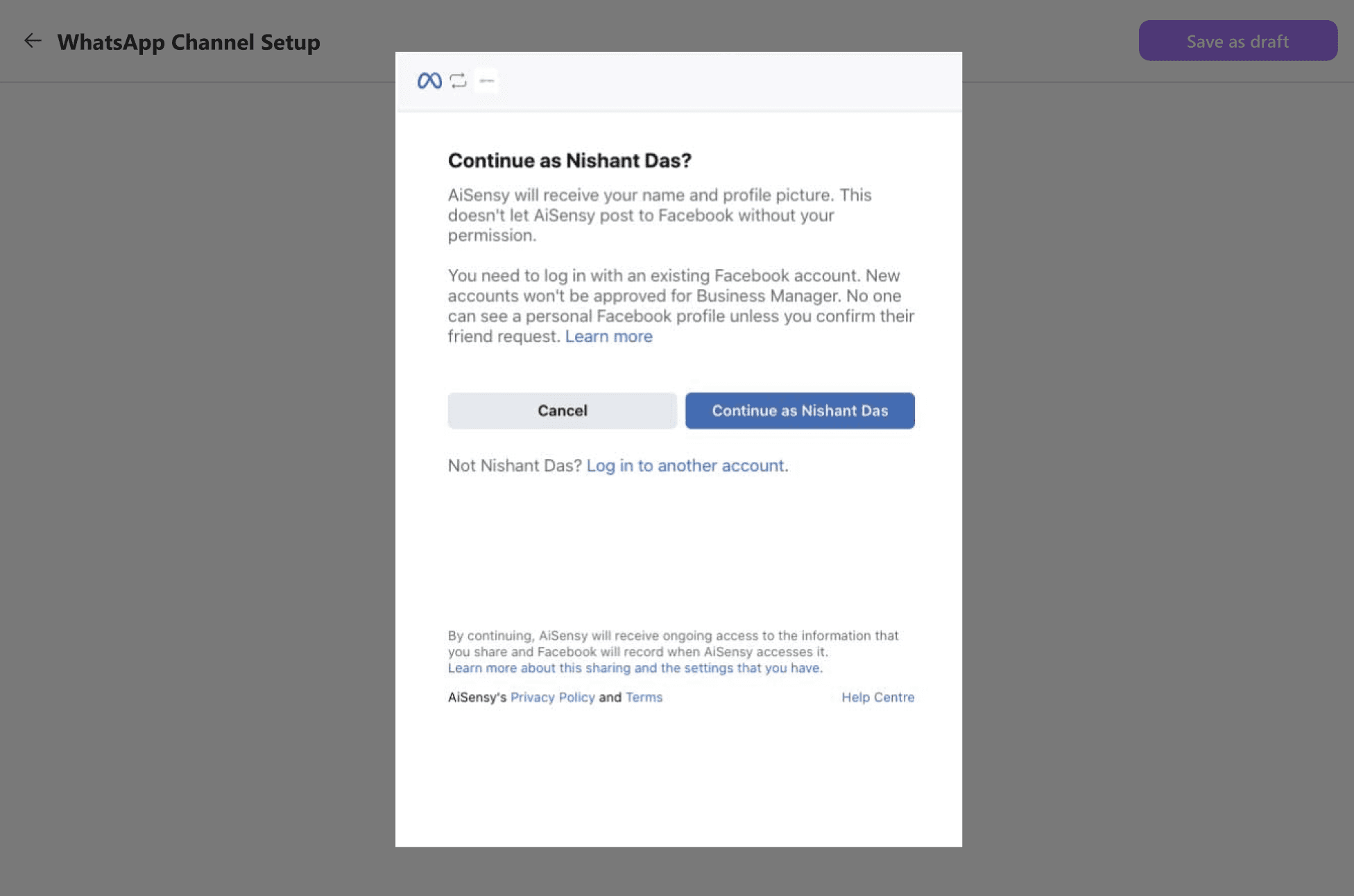
. Click on "Continue with Facebook". A Facebook Dialog box will appear asking for necessary permissions
. Choose a Facebook Account under which you have your Facebook Business Page
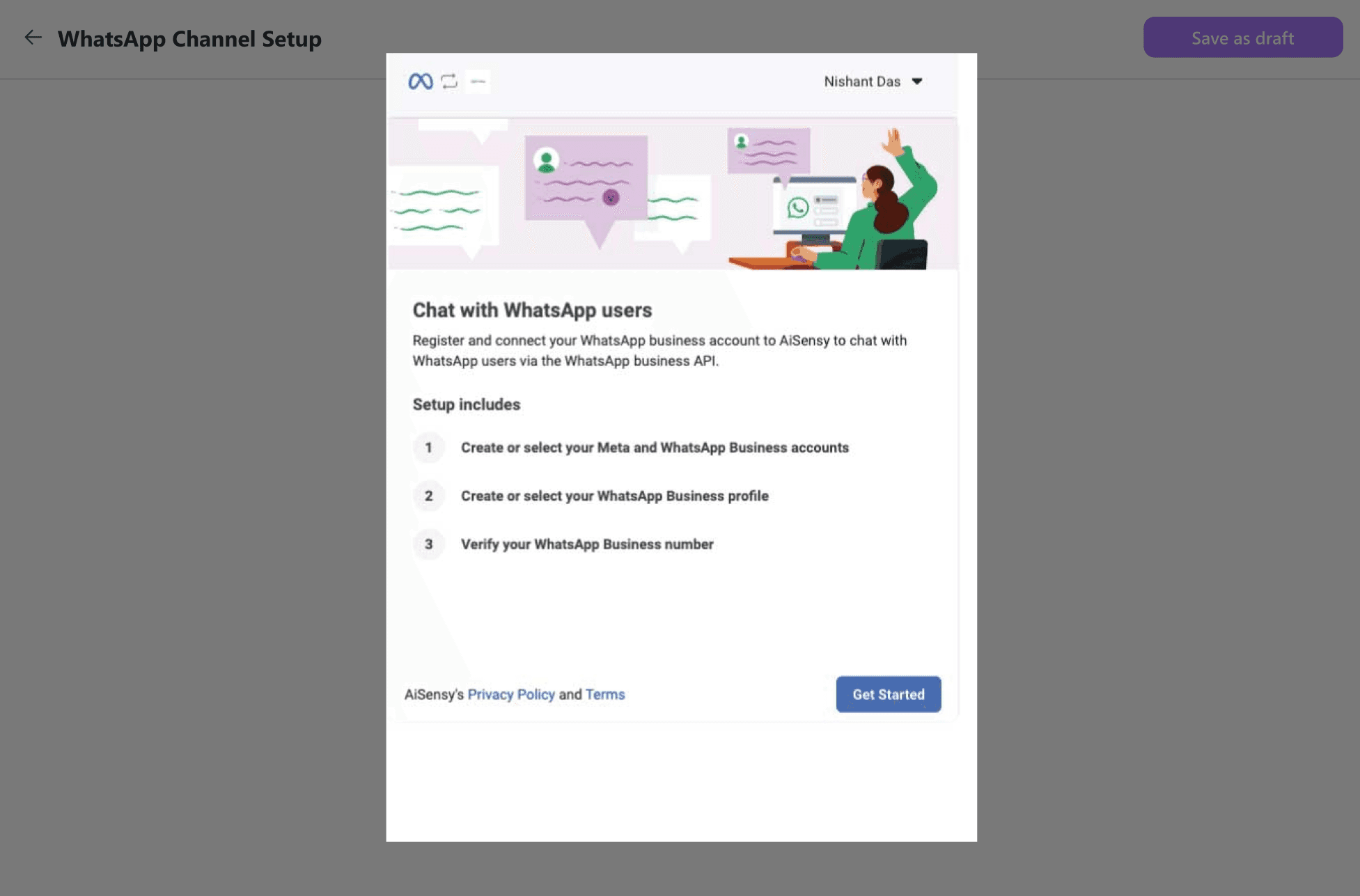
Click on "Get Started" to continue
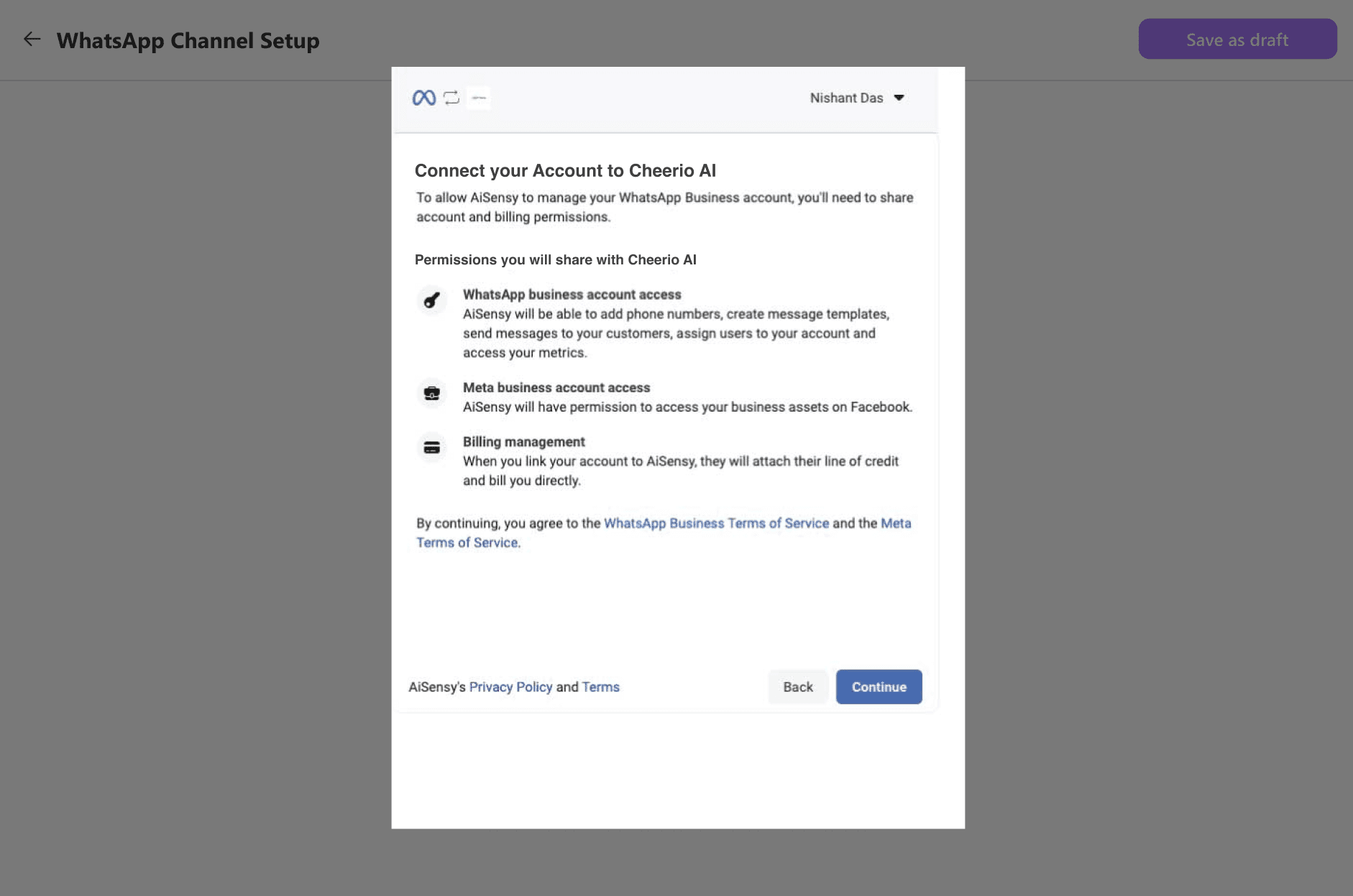
. Your will see list of permission Cheerio AI will require to continue using WhatsApp App. Click on "Continue" to proceed
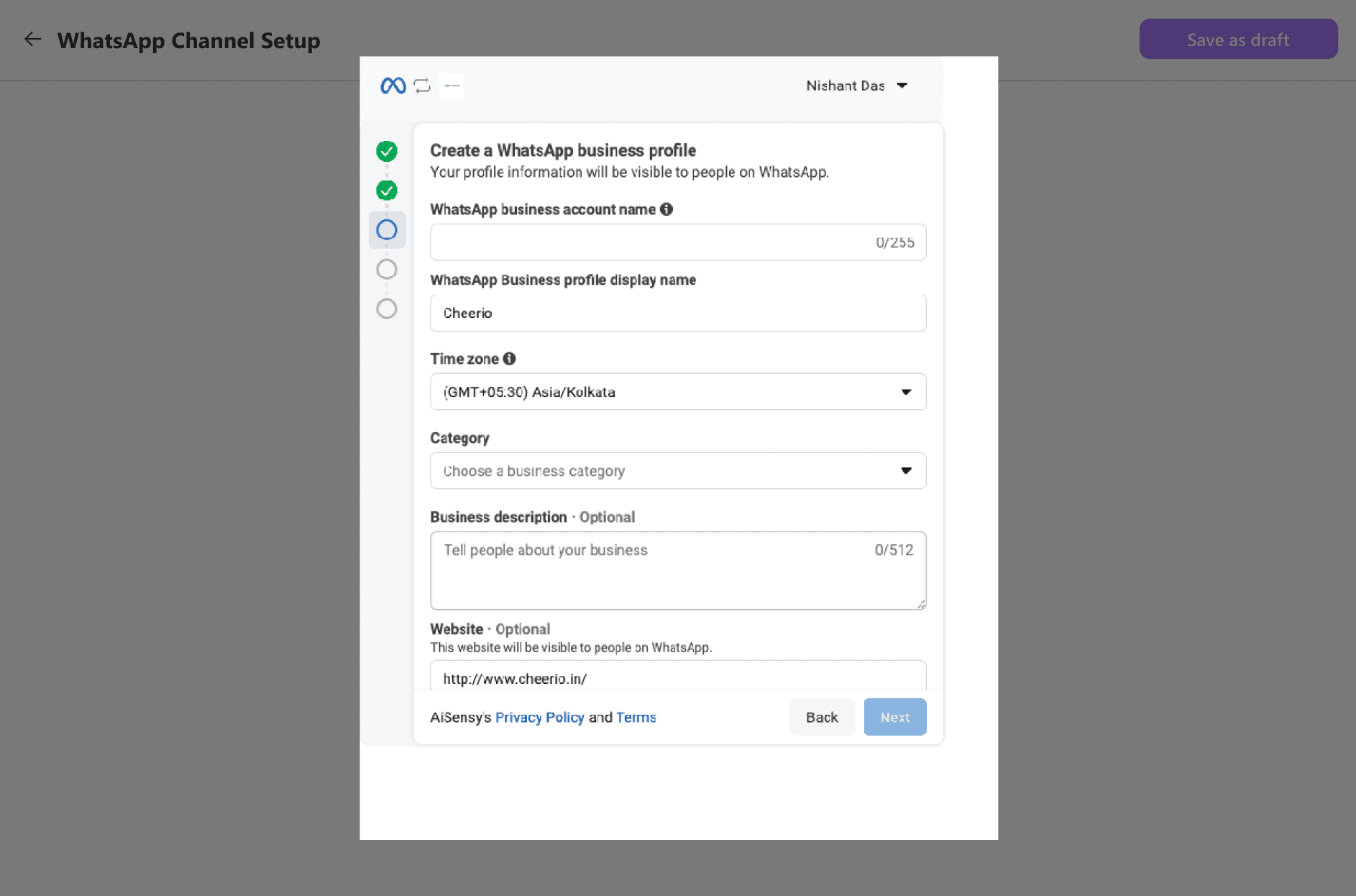
Enter the required business details for your "WhatsApp Business Profile"
Enter the exact number which you want to use for your WhatsApp Business API (Same as point 4). and verify using OTP verification process by clicking on "Next"
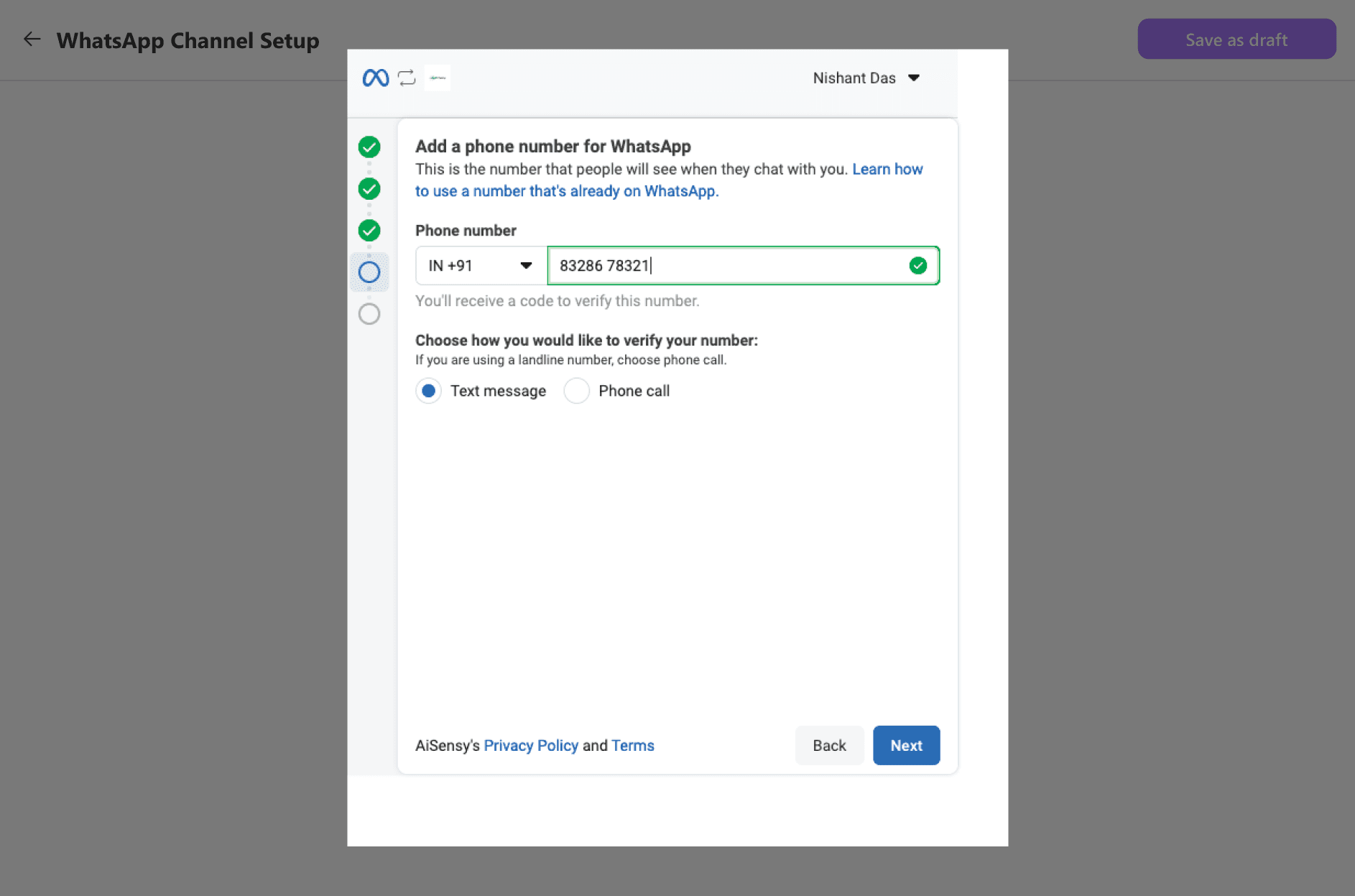
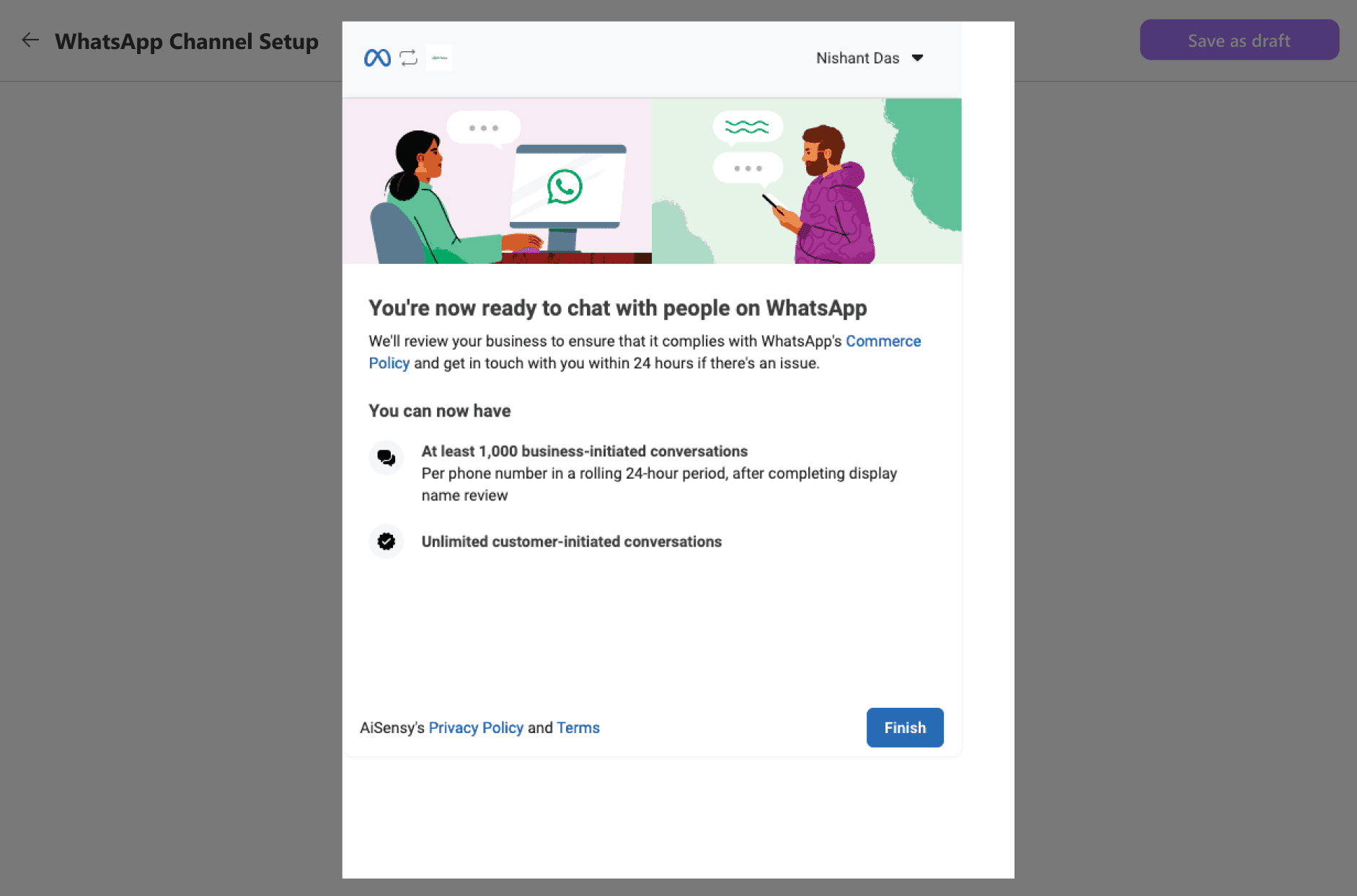
Once verified, Your WhatsApp Number will be connected with Facebook Business page. Click on "Finish" to continue on Cheerio AI.
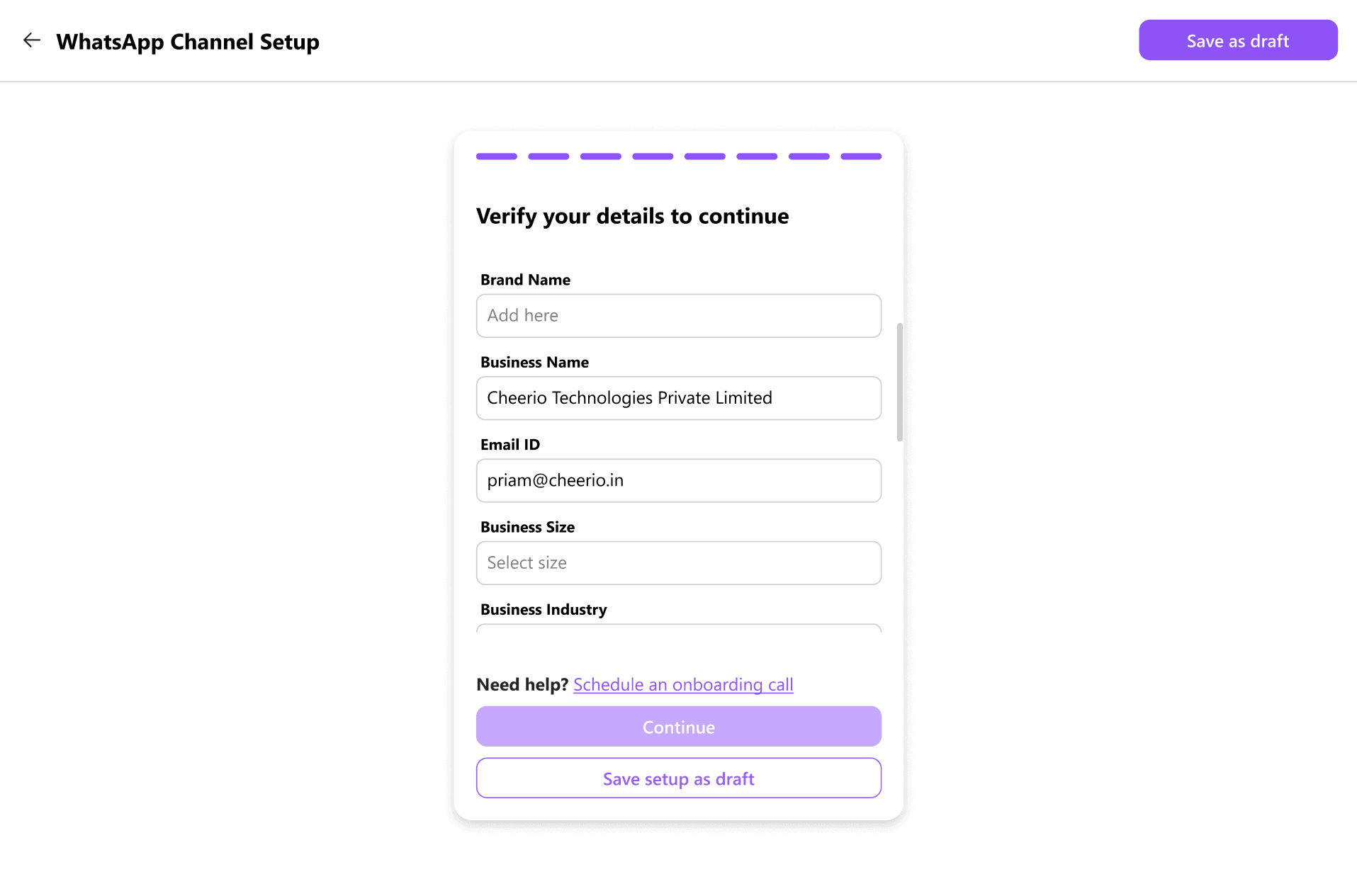
Enter missing details and verify existing details in form show before. Click on "Continue"
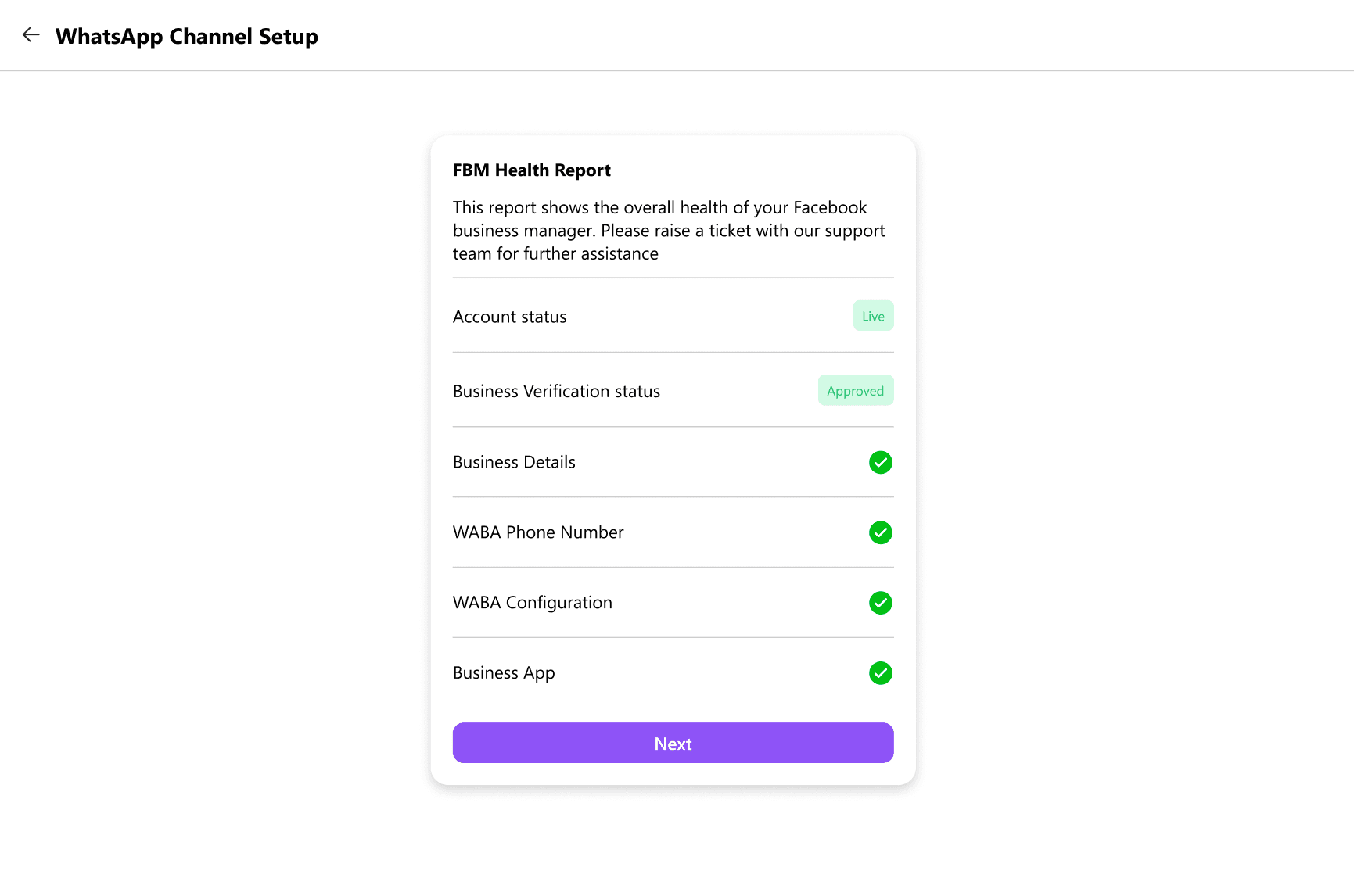
You will see your FBM Health Report. If everything will be fine, click on "Next" or else you will see the second screen with account status as "ON HOLD". If you encounter this, We recommend you to schedule an onboarding with our experts
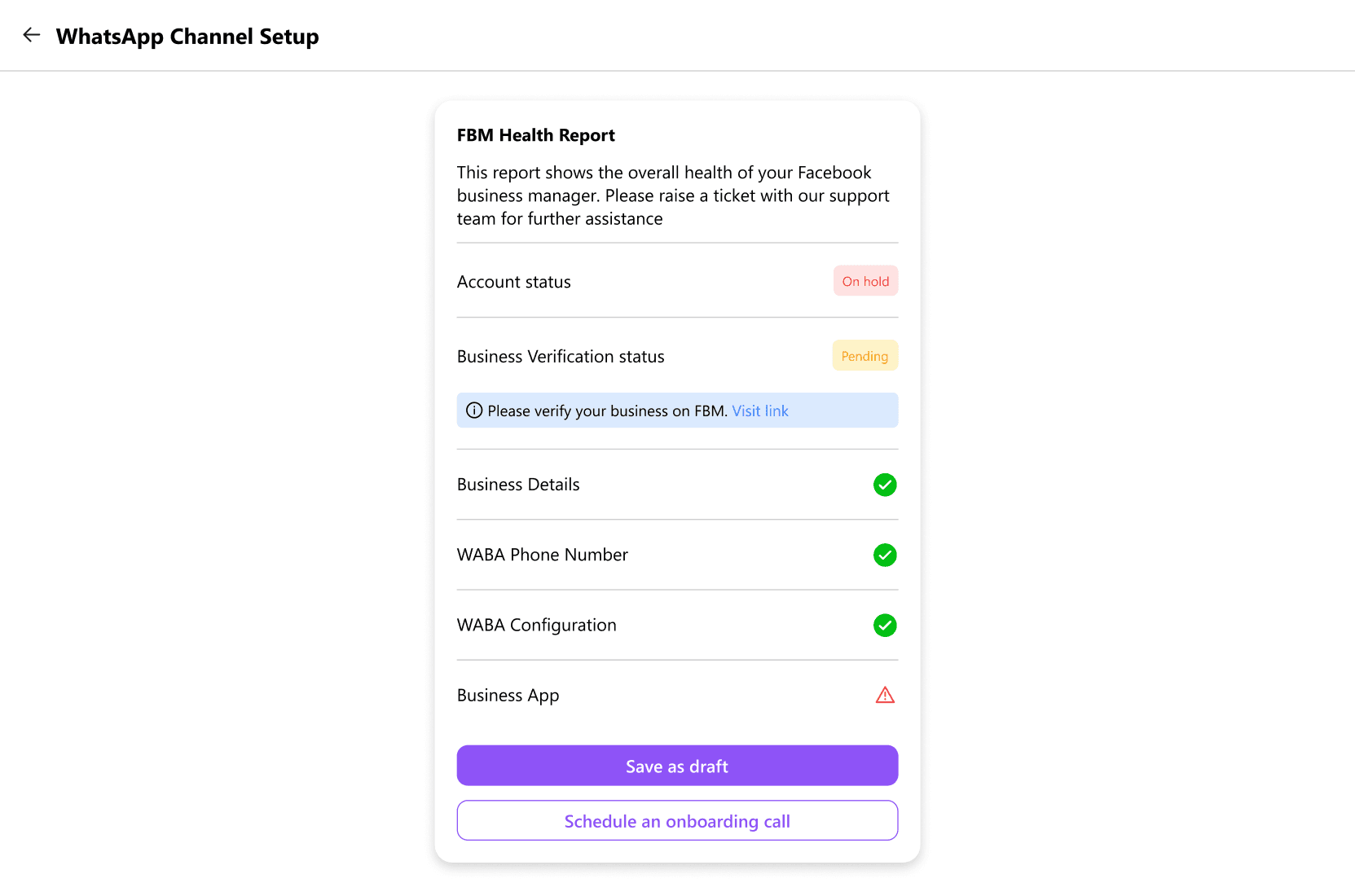
After clicking on "Next" you will have to Send a test message on your WhatsApp API Number.
19.1 You can directly scan this QR Code with your Phone, you will be redirected to your WhatsApp API Number on WhatsApp
19.2 You can click on "click here to open WhatsApp web" to directly open your WhatsApp in your browser
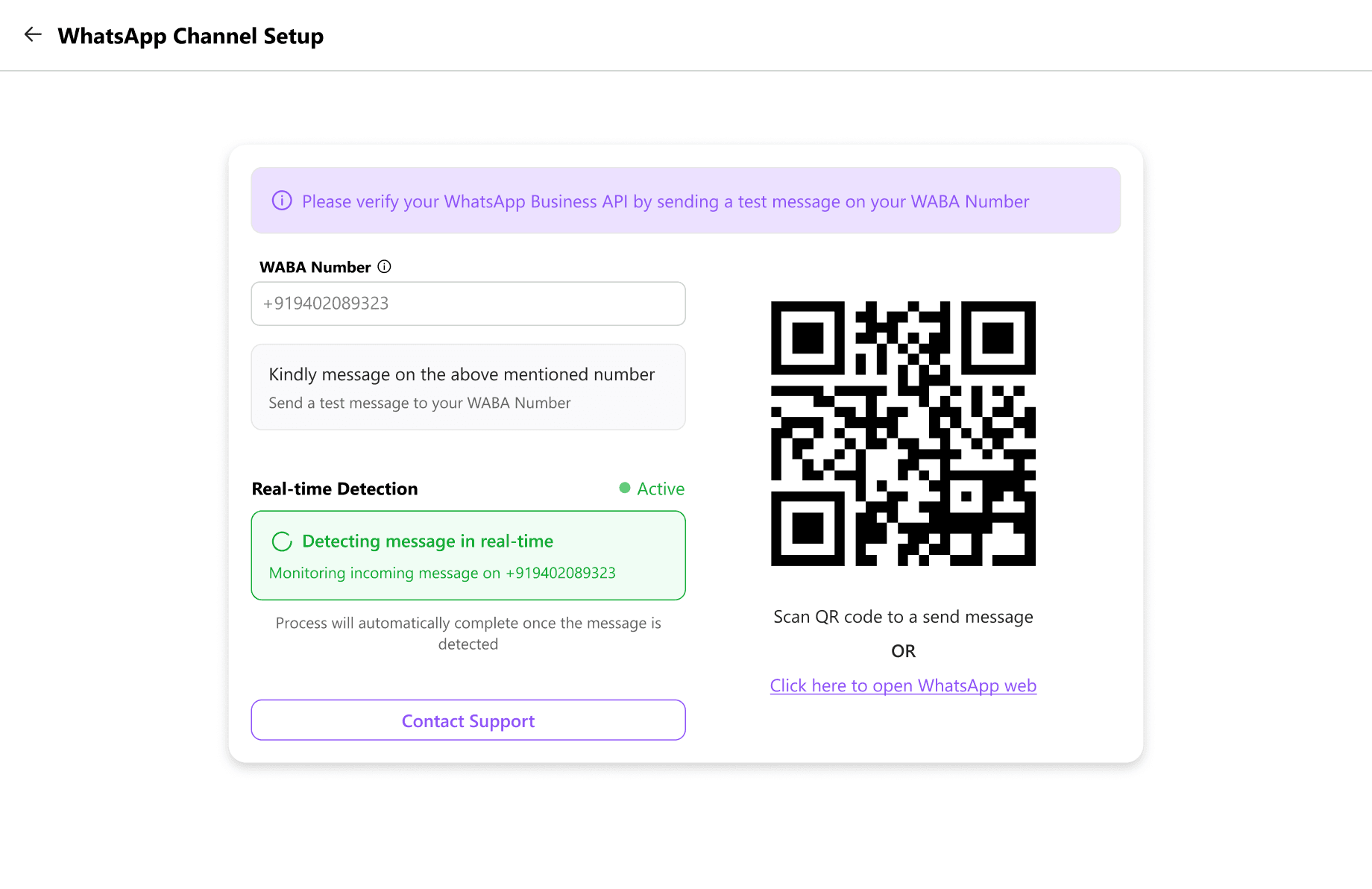
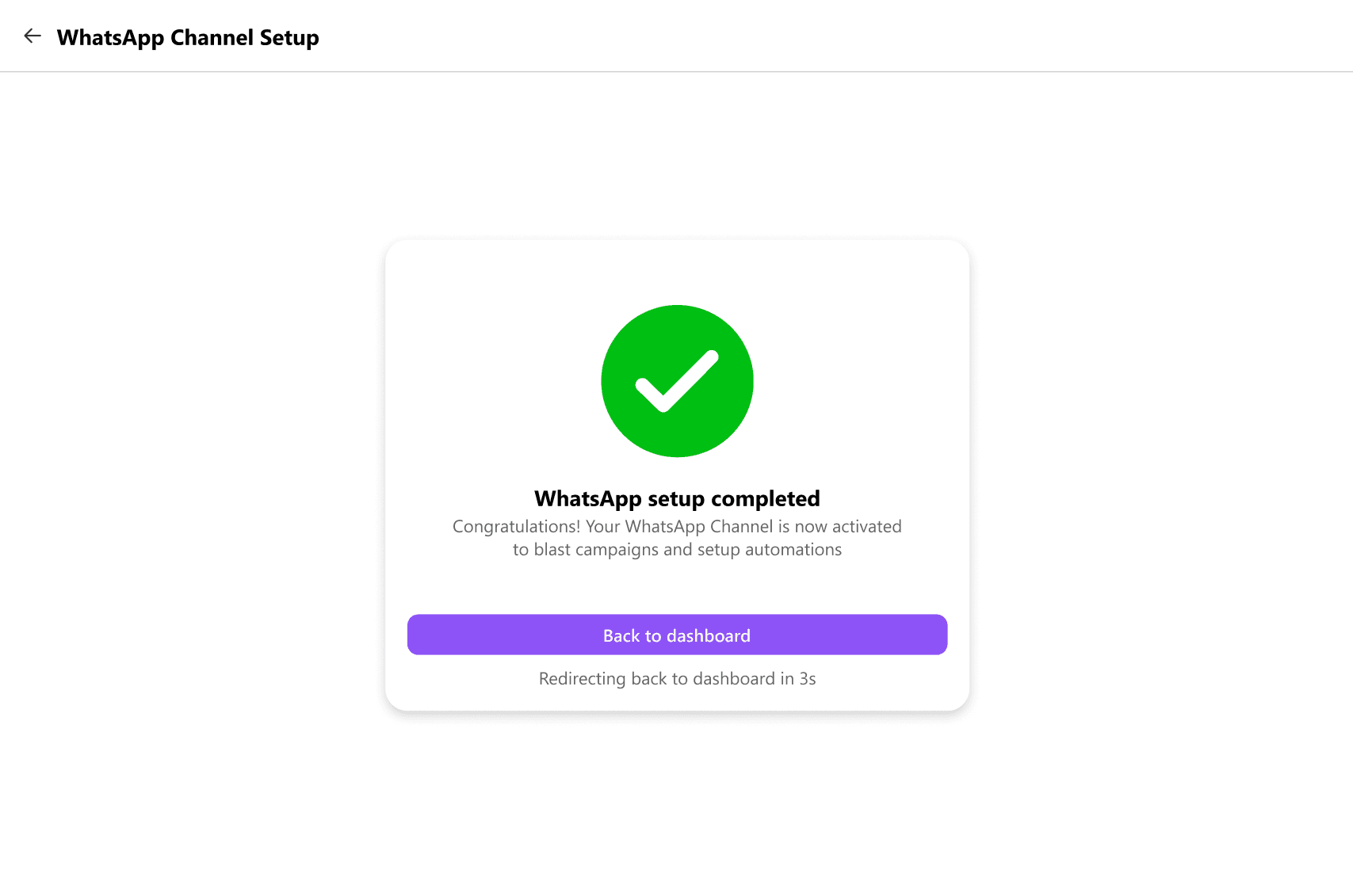
On successful message detection, your WhatsApp Channel setup will be completed on Cheerio AI.
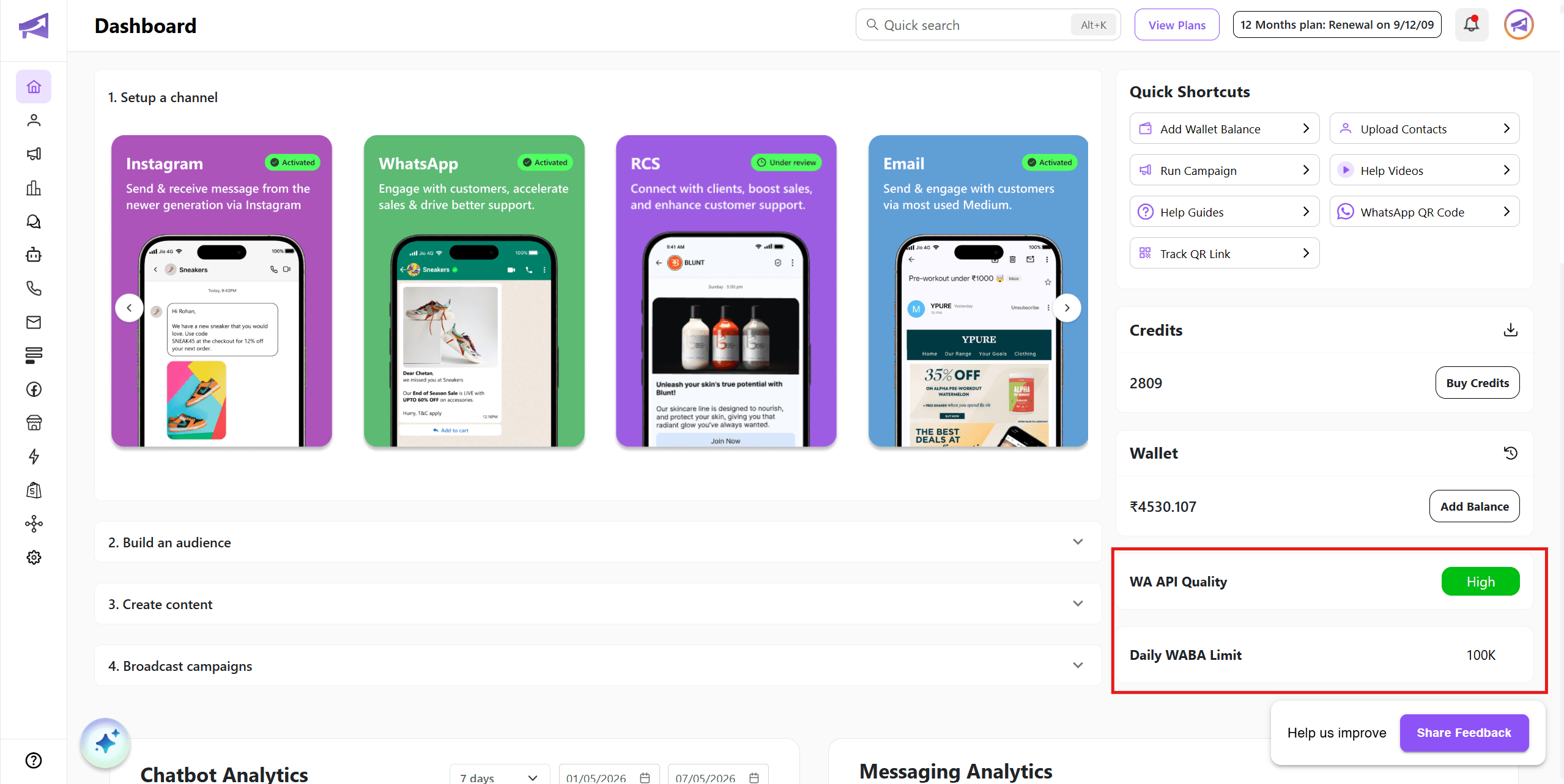
You can check for your message sending limits on Dashboard. Usually Businesses get a limit of 1000 or more messages per day.
Congratulations! Your WhatsApp Channel is ready to broadcast messages to your customers on Cheerio. You can also check our blogs to get the most out of WhatsApp.