How to Reach Shopify Customers by Saving Segments as Labels and Sending a Campaign

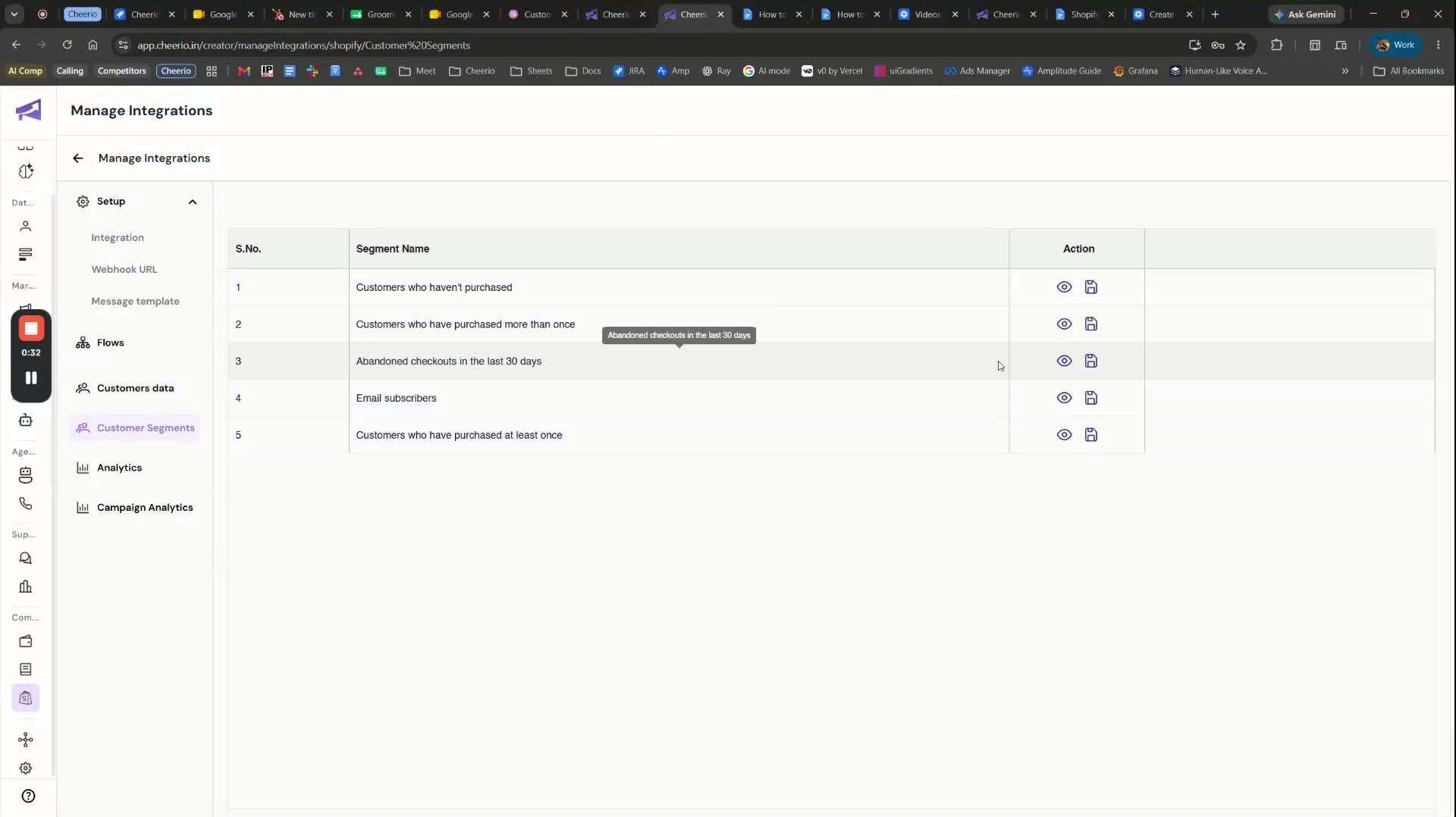
1. Open Shopify segments and choose the customer group you want to contact
generated-image-at-00:00:32

Go to Shopify Analytics.

  • Open the Segments section to view your customer segments.

  • Pick the segment you want to reach out to, such as customers who have purchased only once or have not purchased recently.

  • This segment will be the source audience for your outreach.


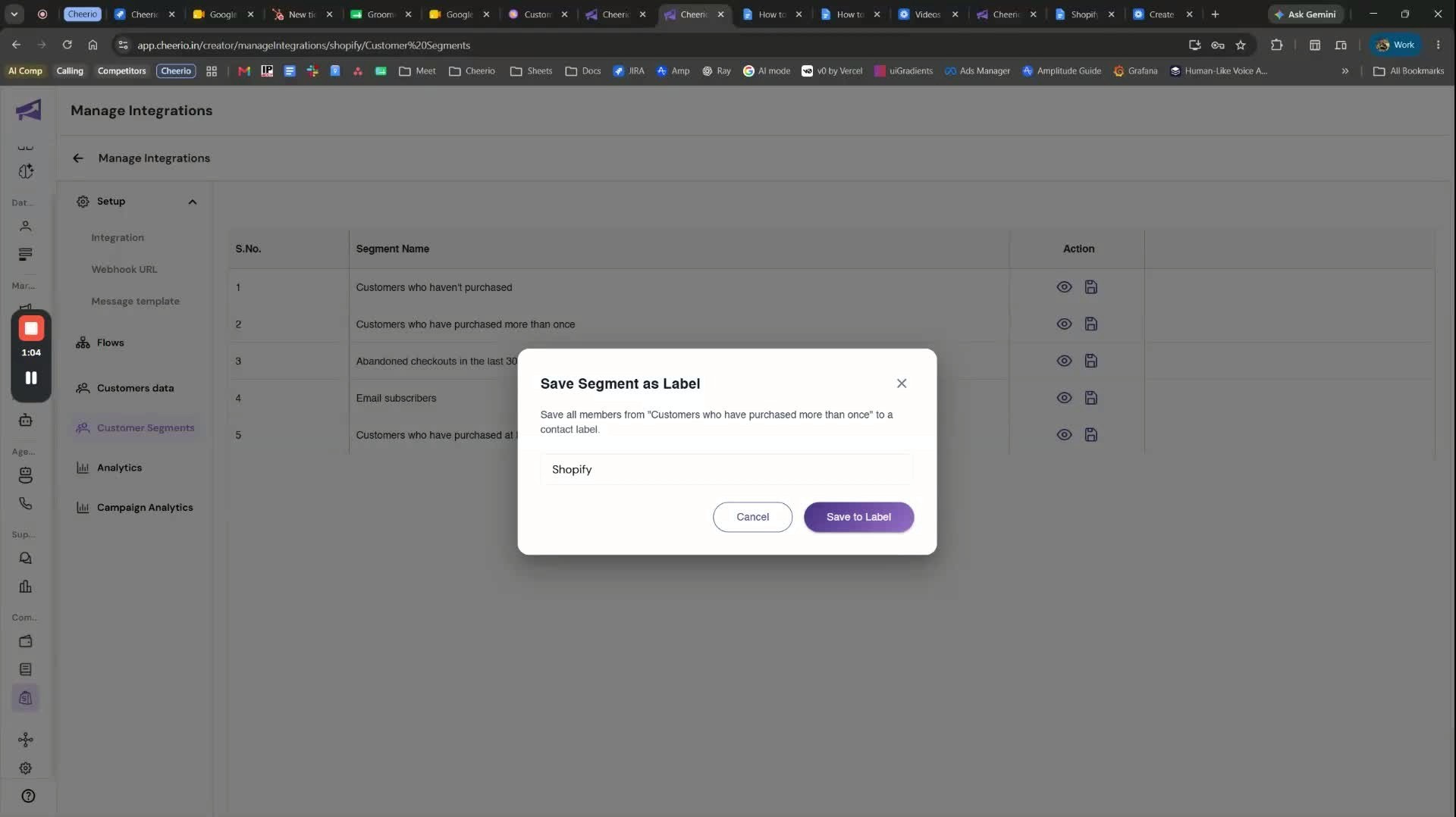
2. Save the Shopify segment as a label in Cheerio
generated-image-at-00:01:04
  • To use the segment for messaging, save it as a label in Cheerio.

  • Example shown: a segment with 3 customers who have not purchased more than once.

  • Click Save.

  • Enter a label name, such as "Shopify 2".

  • Click Save label to store it in your contact labels.


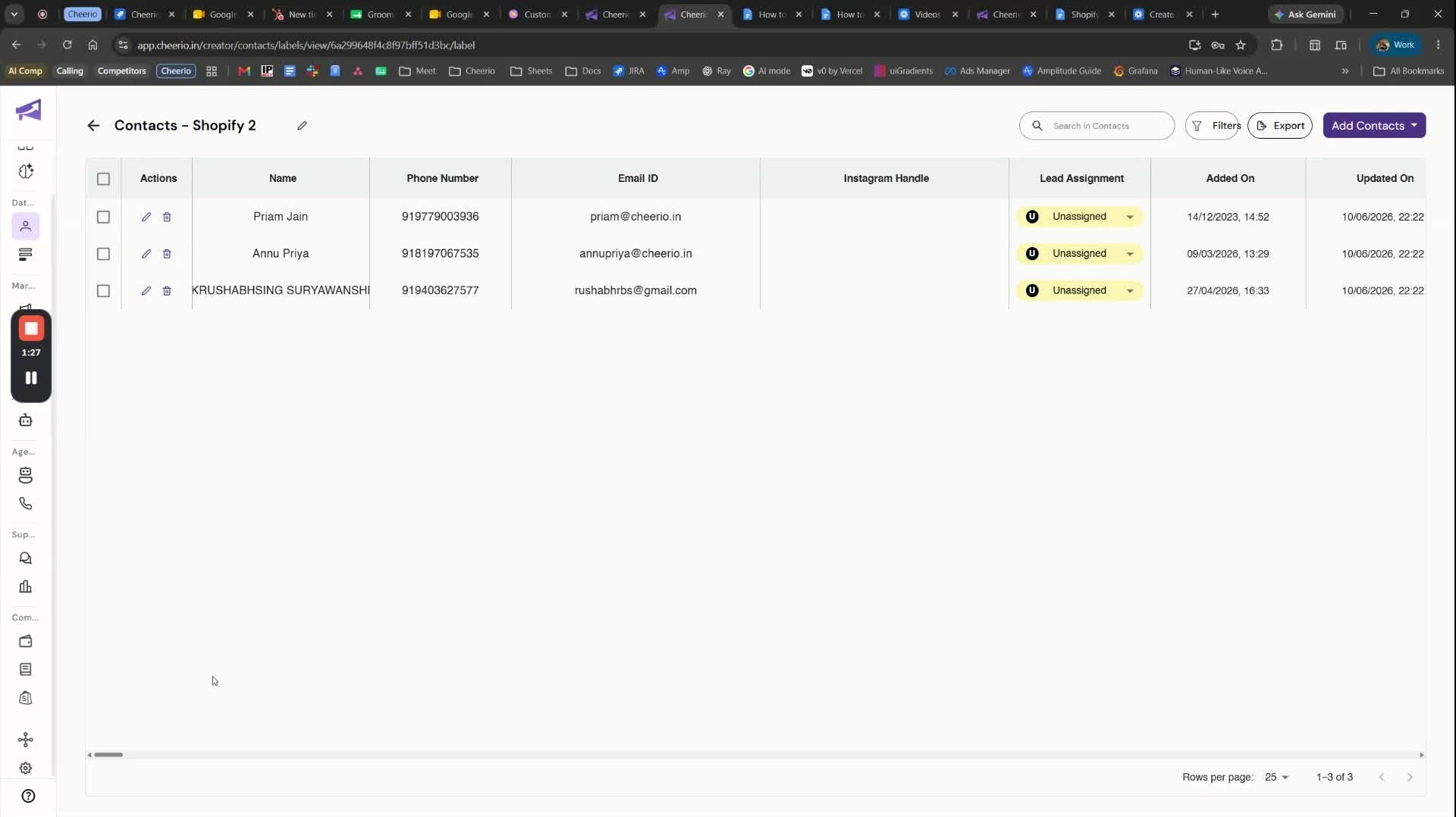
3. Find the saved label in the Contacts section
generated-image-at-00:01:27
  • After saving, the label appears under the Contacts > Labels section.

  • You can review the customer records associated with that label.

  • The label includes useful customer details, such as:

    • Relevant use-case/customer information

    • Order ID

    • Number of orders

  • This makes it easy to identify and segment customers for future campaigns.


4. Rely on automatic syncing with Shopify data

generated-image-at-00:01:27
  • The label is mapped to the Shopify segment, so it stays updated automatically.

  • If customer data changes in Shopify later, the label updates too.

  • Example: if a customer like Preem goes from 12 orders to 15 orders, you do not need to re-save or reconfigure the label.

  • You can trust the label to remain current whenever you use it for outreach.


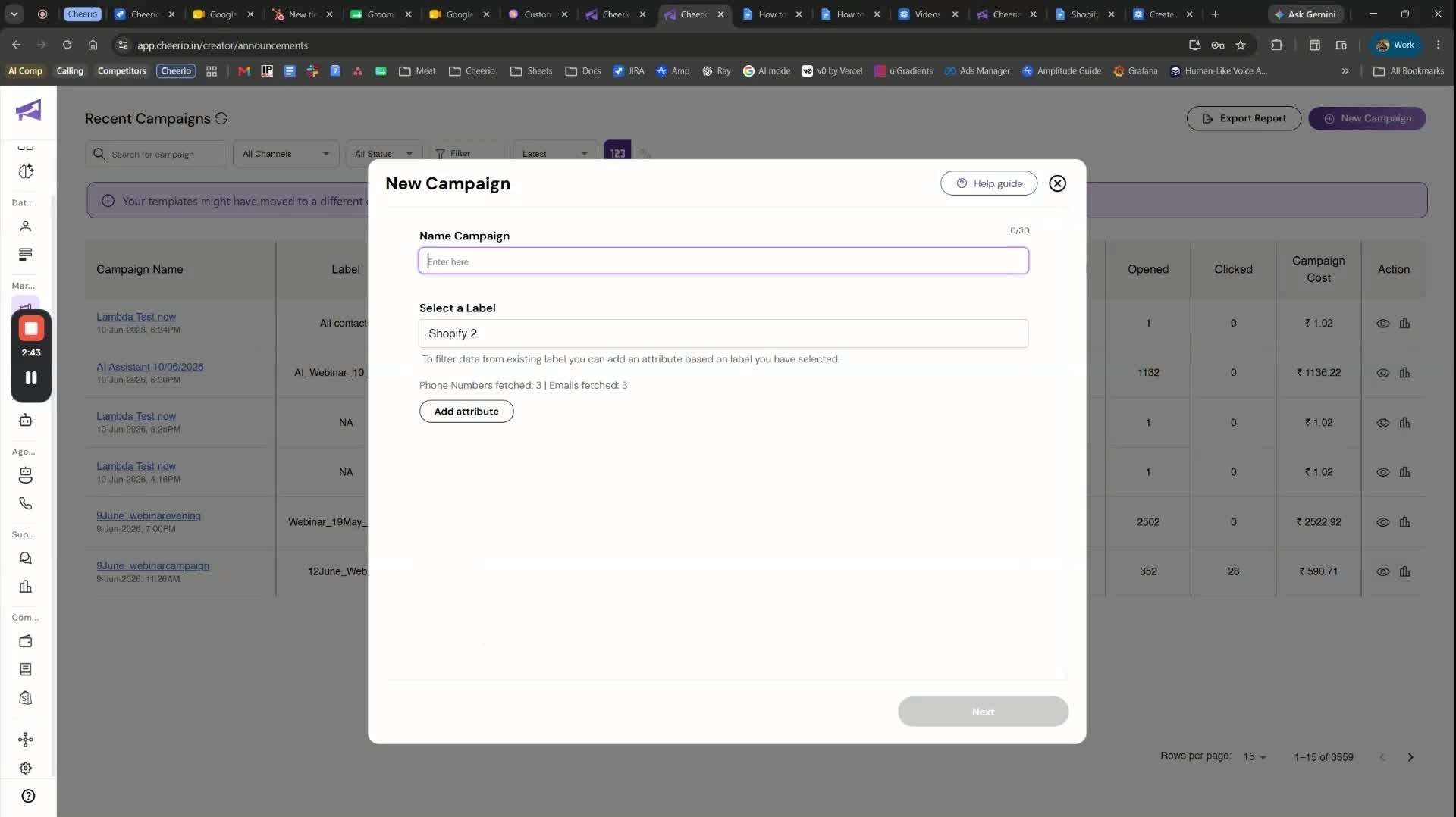
5. Create a broadcast campaign using the saved label
generated-image-at-00:02:43
  • Go to Campaigns > Broadcast.

  • Click New campaign.

  • Choose the campaign type you want.

  • Select the saved label, such as Shopify 2, as your audience.

  • Give the campaign a name, for example "WhatsApp campaign".

  • Click Next to continue.


6. Select a template and configure message variables
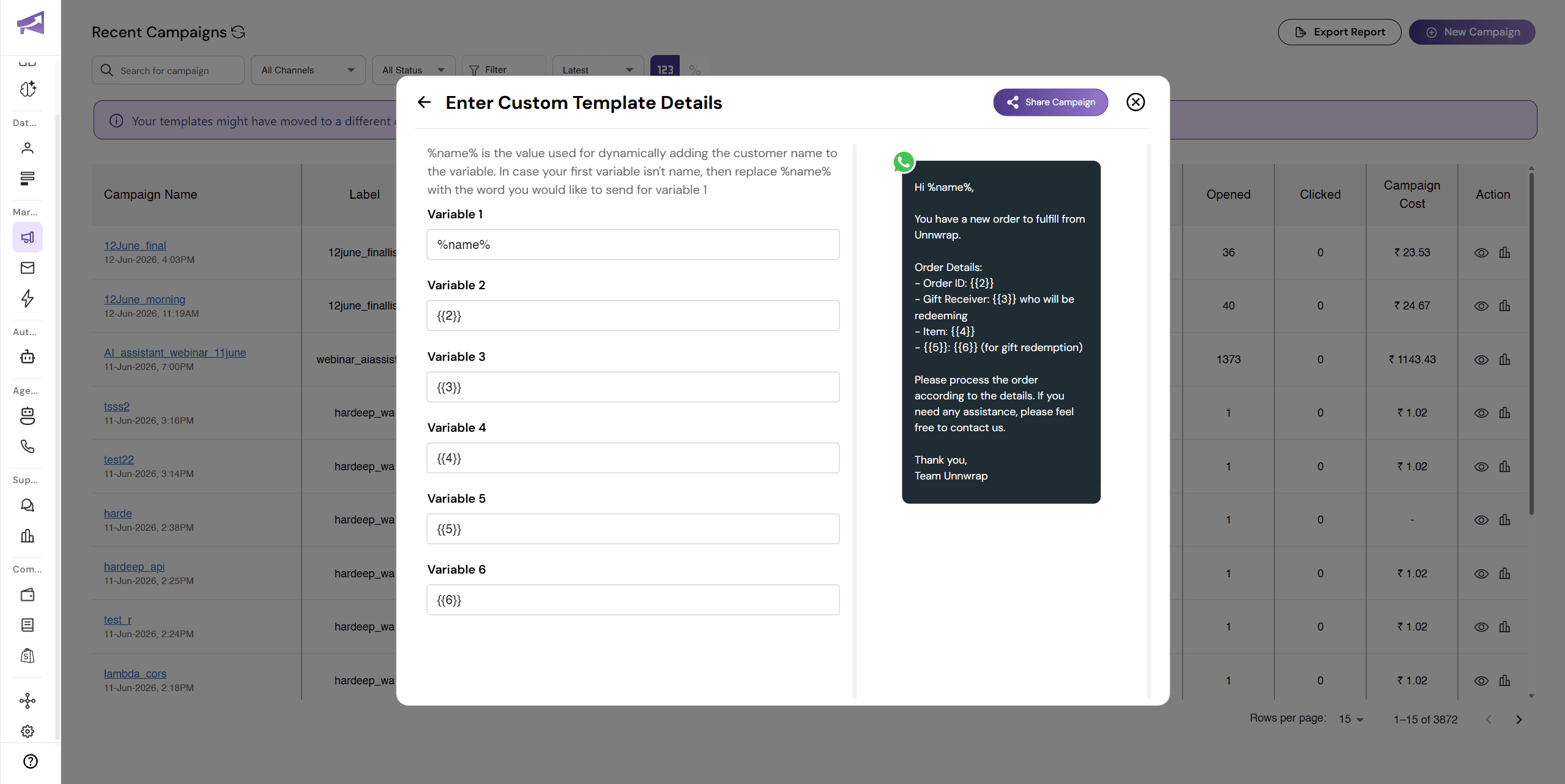
  • Choose a message template for the campaign.

  • The video shows selecting a WhatsApp template for a specific use case.

  • Fill in the template fields and variables as needed, such as:

    • Meeting name

    • Demo variable

    • Meeting ID

    • Facebook URL

    • Passcode

  • Once the variables are set, the WhatsApp template is ready to send as a campaign.

Recommended for You

How to Create Shopify Workflows in Cheerio AI

June 17, 2026

How to connect your Shopify store with Cheerio-AI

June 17, 2026

How to create and manage custom contact attributes on Cheerio?

December 14, 2025

Cheerio AI Home

Pricing

Channels

Solutions

Case Studies

Resources

Login
Book a Demo
Cheerio AI Home

See Cheerio AI in action

Schedule a demo to explore how Cheerio runs enterprise workflows across your systems and channels.

Book a demo

Trusted by enterprise teams running workflows at scale.

Running enterprise workflows with clarity and control.

admin@cheerio.in

Pages

Home

Pricing

Channels

Solutions

Resources

Case Studies

Appendix

Privacy Policy

Terms & Conditions

Refund Policy

Support

PR Releases

Login

Social

Linkedin

Instagram

Youtube

© 2026 Cheerio AI. All rights reserved.

Designed by Moonkraft Studio

See Cheerio AI in action

Schedule a demo to explore how Cheerio runs enterprise workflows across your systems and channels.

Book a demo

Trusted by enterprise teams running workflows at scale.

Running enterprise workflows with clarity and control.

admin@cheerio.in

Pages

Home

Pricing

Channels

Solutions

Resources

Case Studies

Appendix

Privacy Policy

Terms &

Conditions

Refund Policy

Support

PR Releases

Login

Social

© 2026 Cheerio AI. All rights reserved.

Designed by Moonkraft Studio

See Cheerio AI in action

Schedule a demo to explore how Cheerio runs enterprise workflows across your systems and channels.

Trusted by enterprise teams running workflows at scale.

Book a demo

Running enterprise workflows with clarity and control.

admin@cheerio.in

Pages

Home

Pricing

Channels

Solutions

Resources

Case Studies

Appendix

Privacy Policy

Terms & Conditions

Refund Policy

Support

PR Releases

Login

Social

Linkedin

Instagram

Youtube

© 2026 Cheerio AI. All rights reserved.

Designed by Moonkraft Studio